 Inquire on LINE
  Inquire via email form
Please select the HoloModels app you want to learn how to play
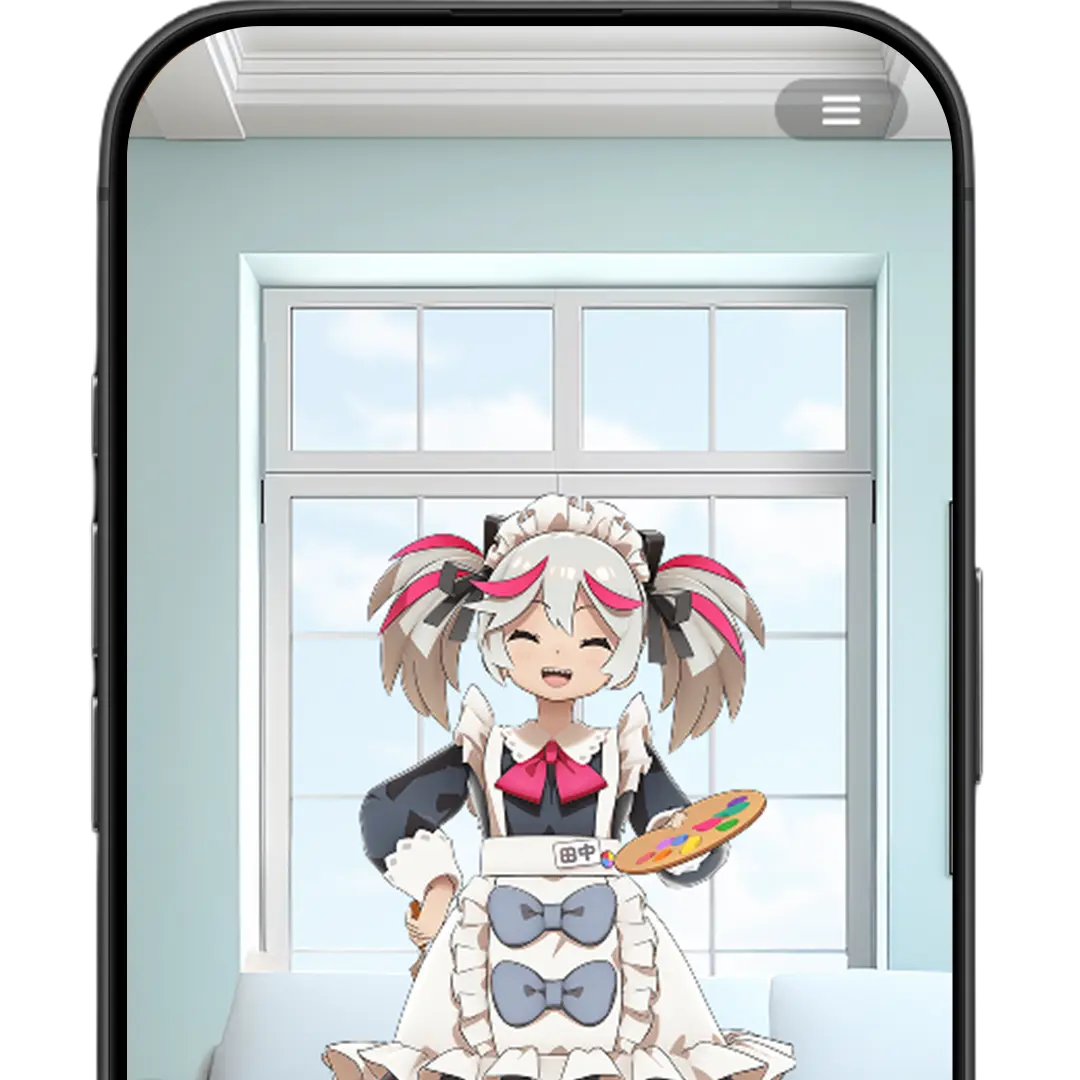
Easy and simple shooting!
[New] HoloModels
Traditional AR pose creation, event features, and more
HoloModels Location
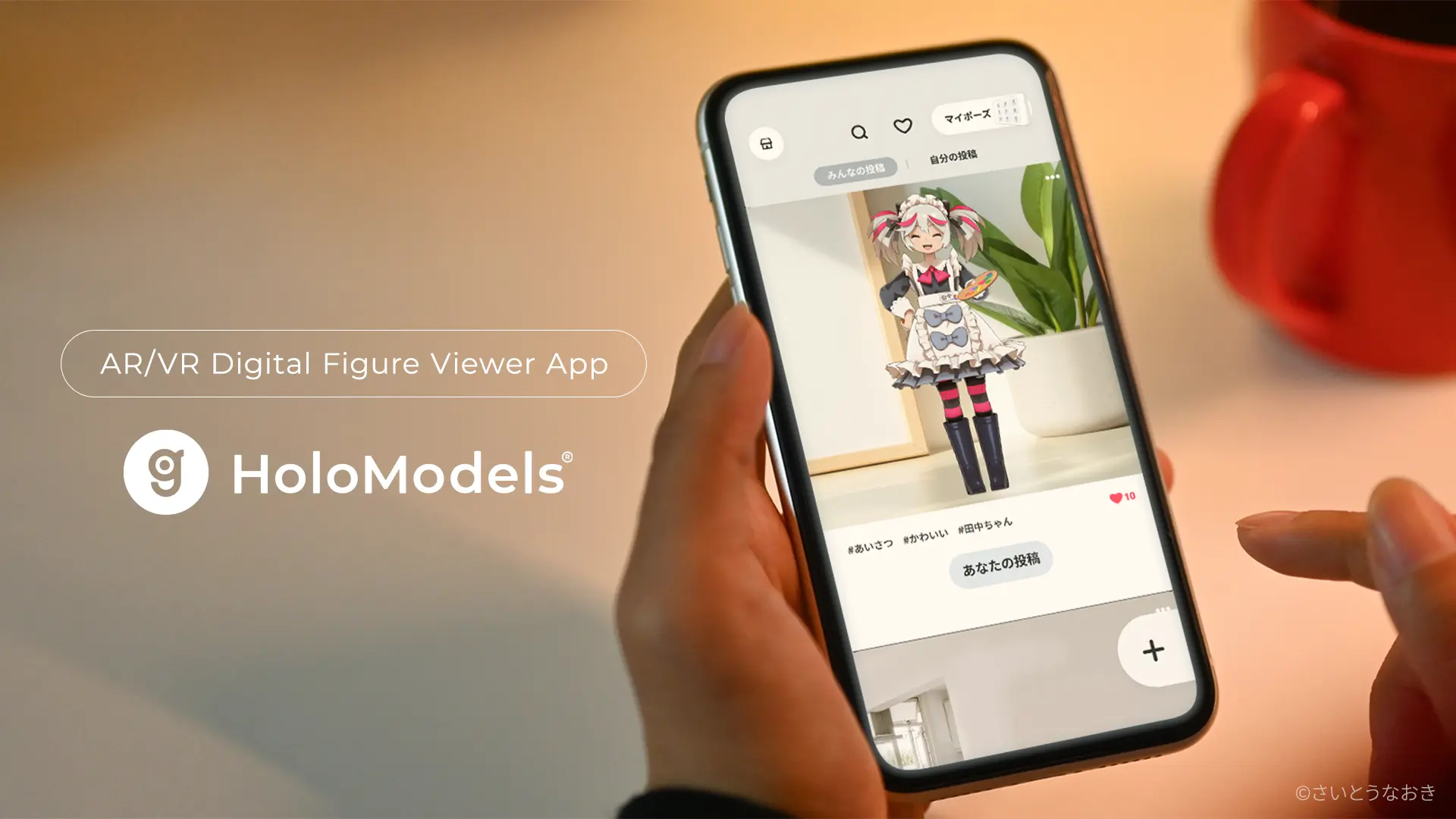
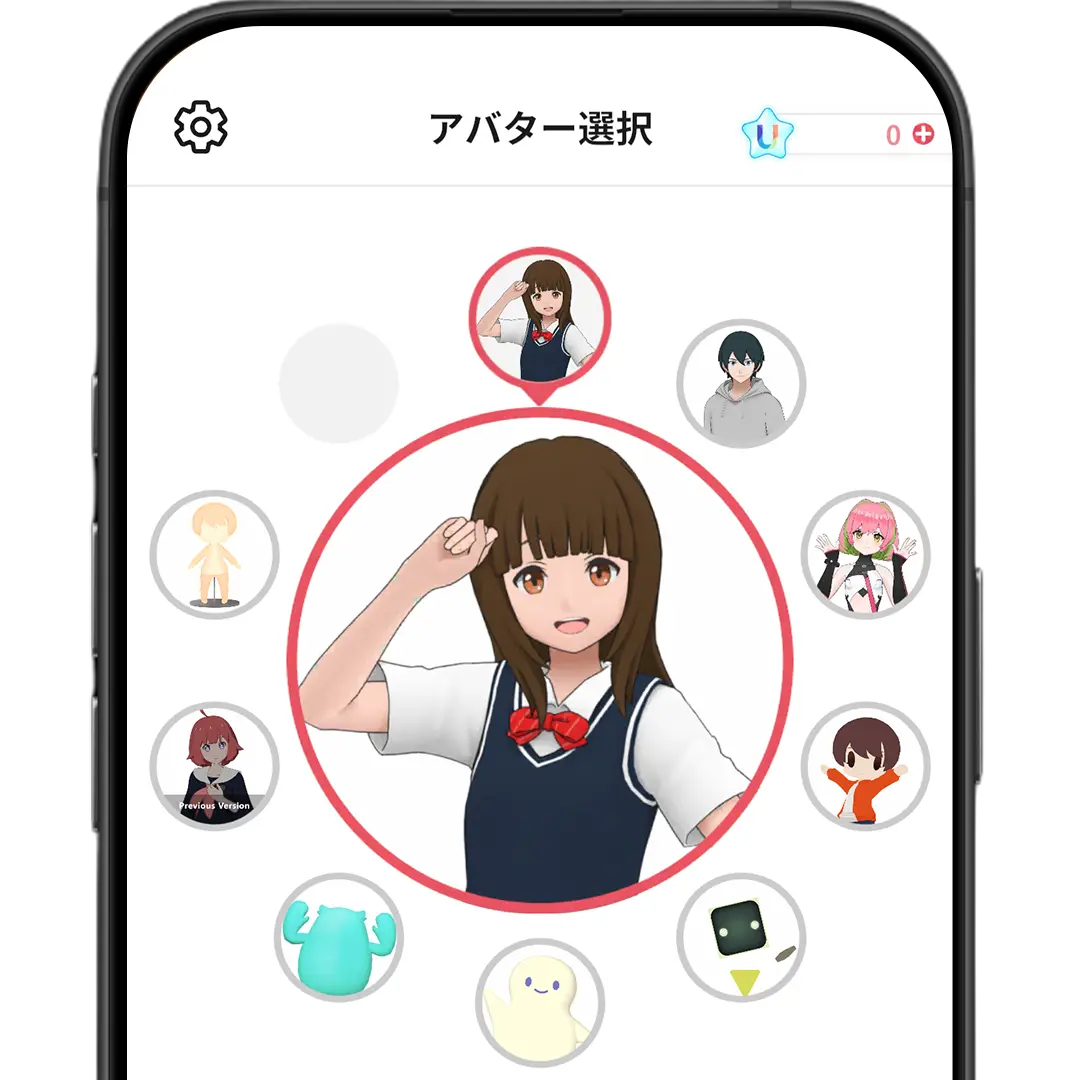
This is a digital figure viewer app that allows you to freely customize your character's poses, expressions, and size using your smartphone.
You can display characters anywhere you like using AR, showcase them at life-size, and play their voices. The SNS feature also allows you to use poses created by other users.
1 From launch to the figure control screen
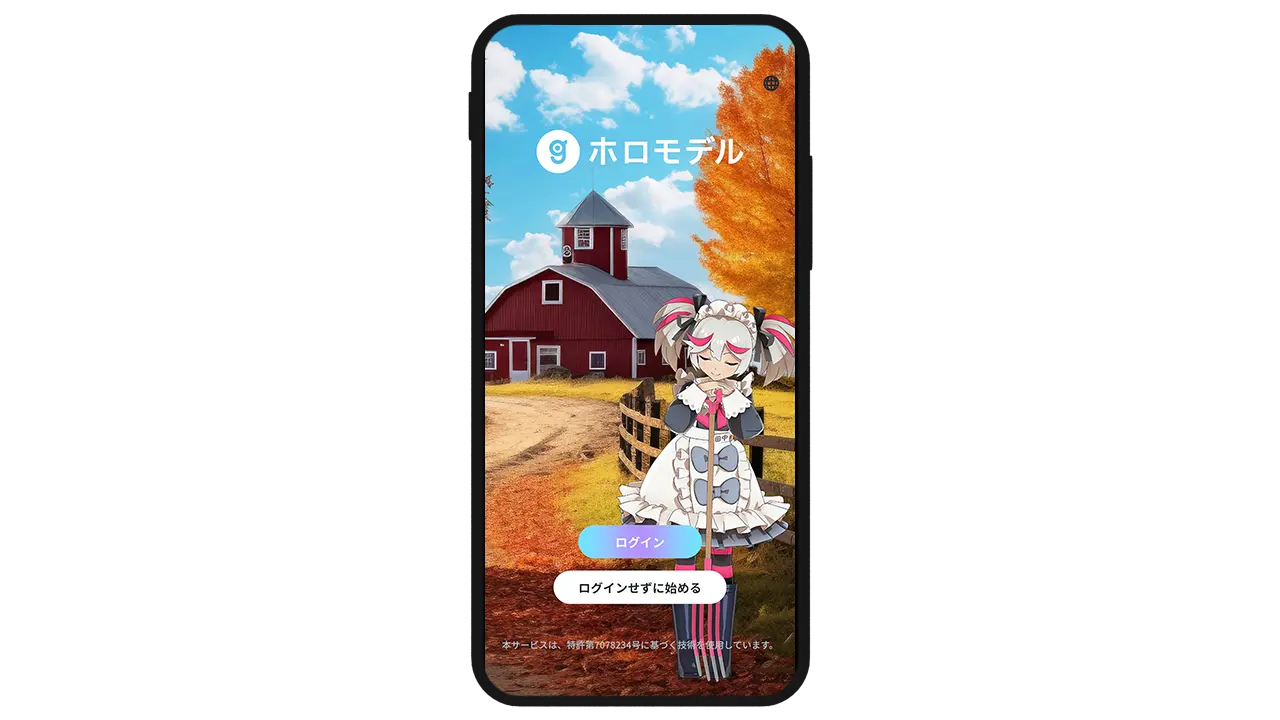
Launch the HoloModels app and log in. On the title screen, select the "Log In" button and sign in with the U Account that owns your figures. *U Account: An account for XMarket
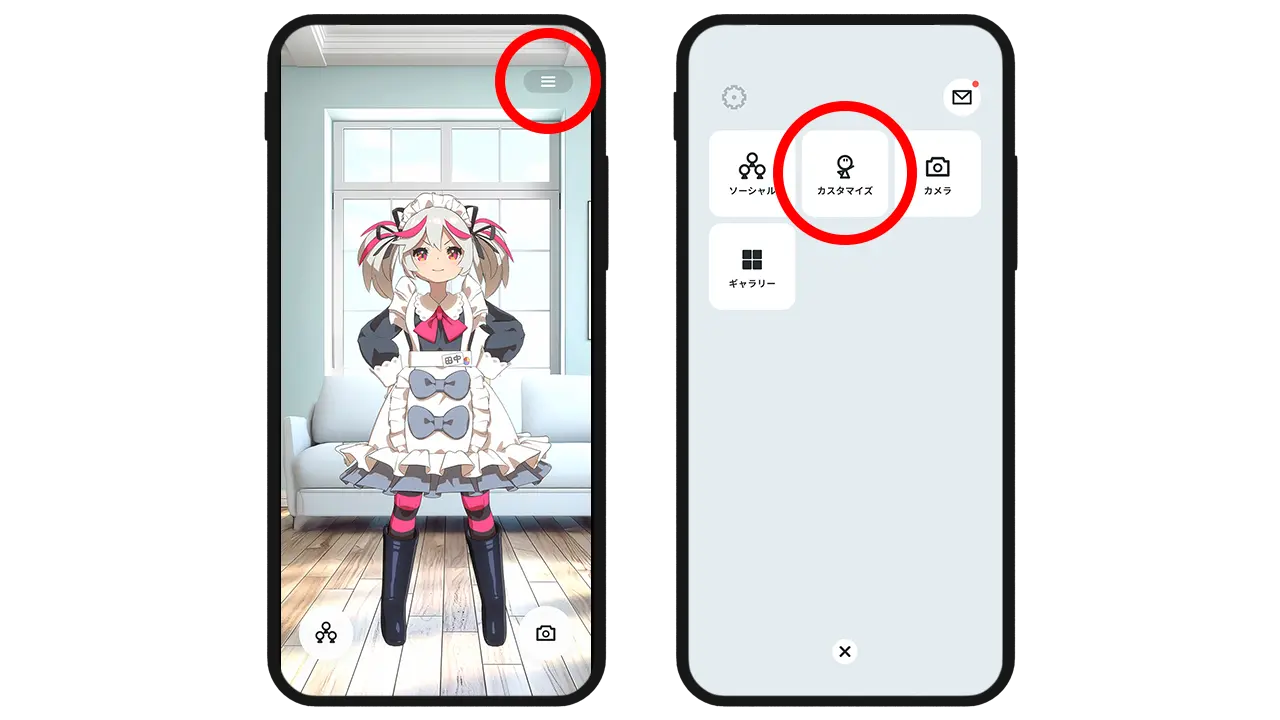
Select the menu button at the top right of the screen, and once the menu is displayed, select the Customize button. (You can also move there by directly tapping a figure from the home screen.)
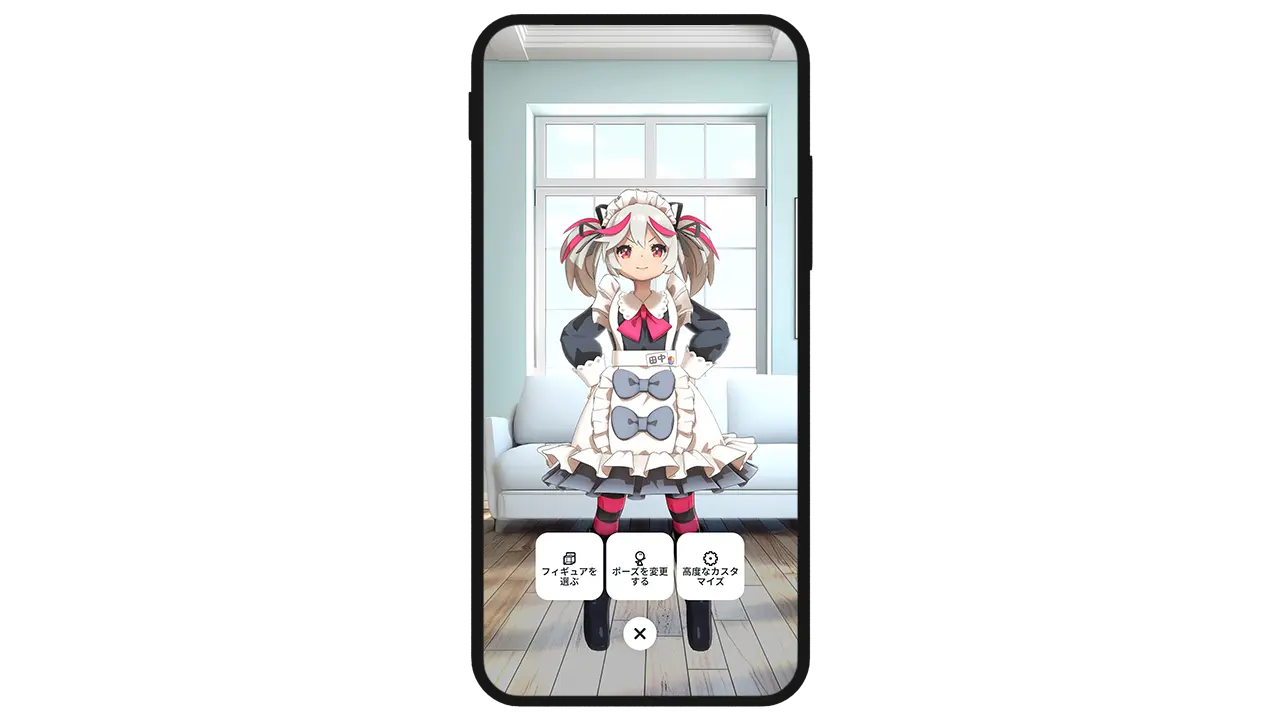
The customization screen is now displayed.
2 Select a Figure
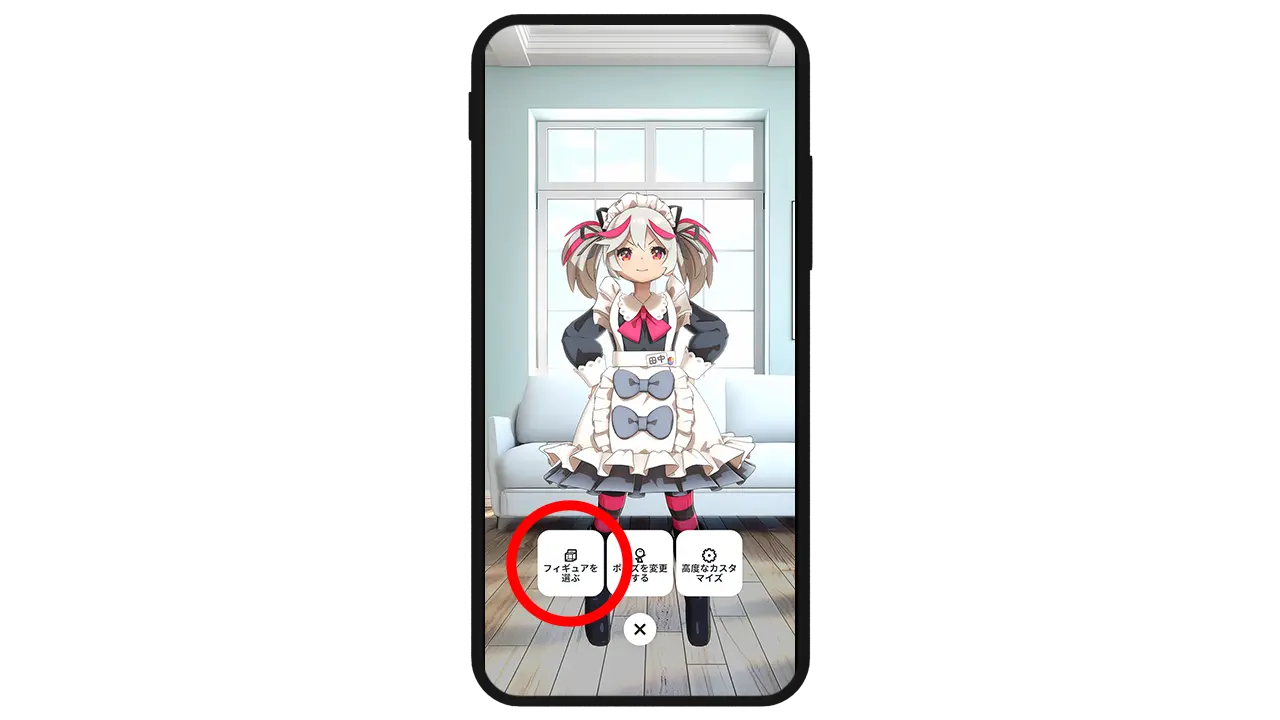
A list of figures will be displayed under Select Figure on the customization screen.
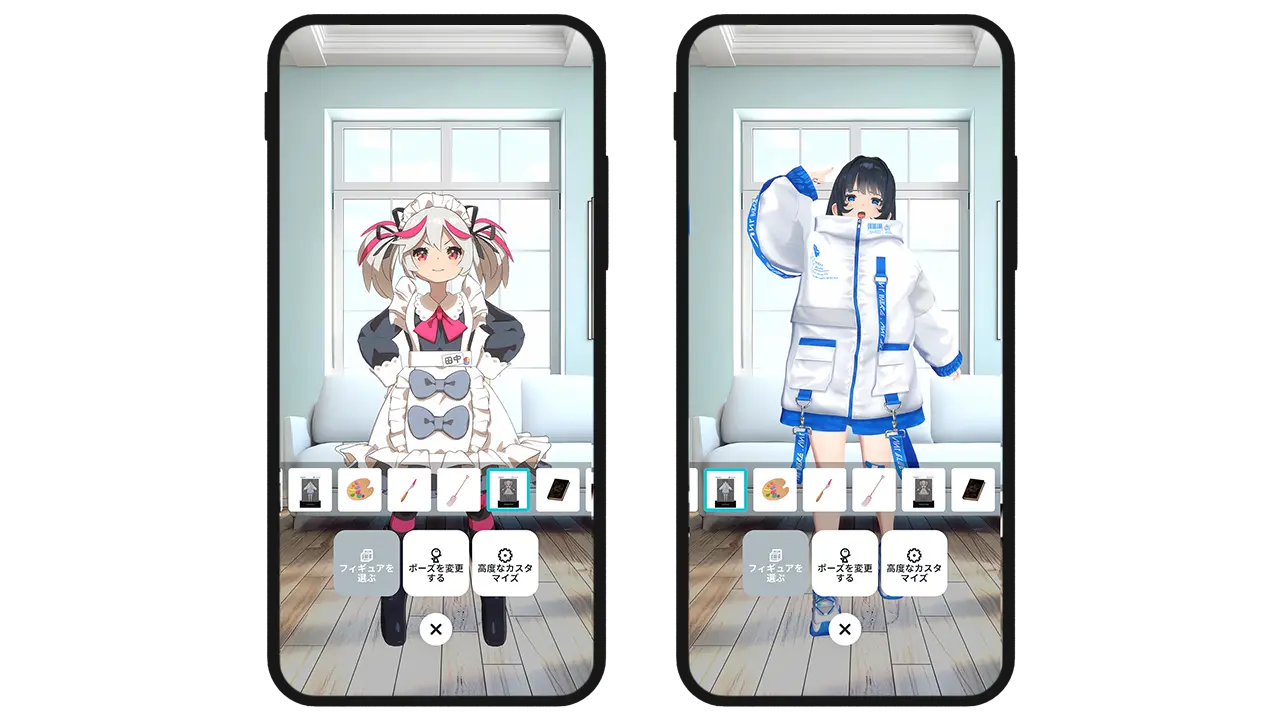
Tap the Figures category to display the figures.
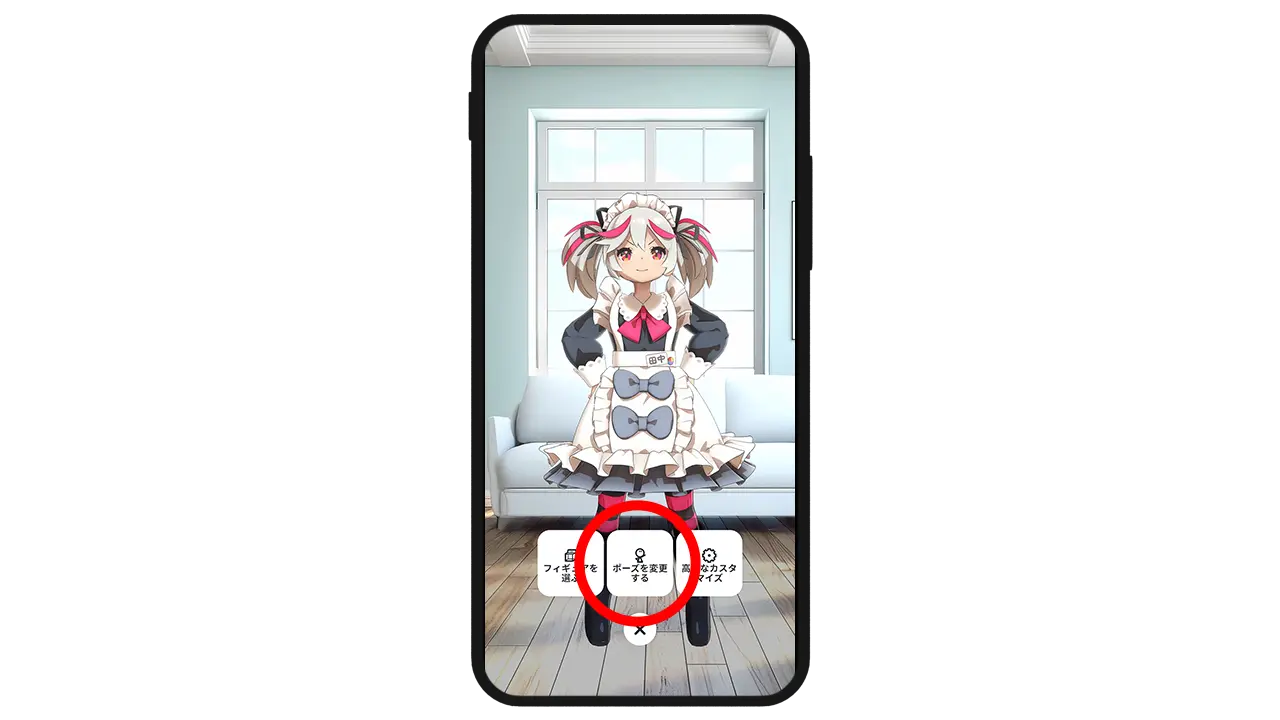
You can change the Move, Rotate, Size, and Delete Figure settings from the quick menu that appears when you tap the figure you want to adjust.
3 Change Pose
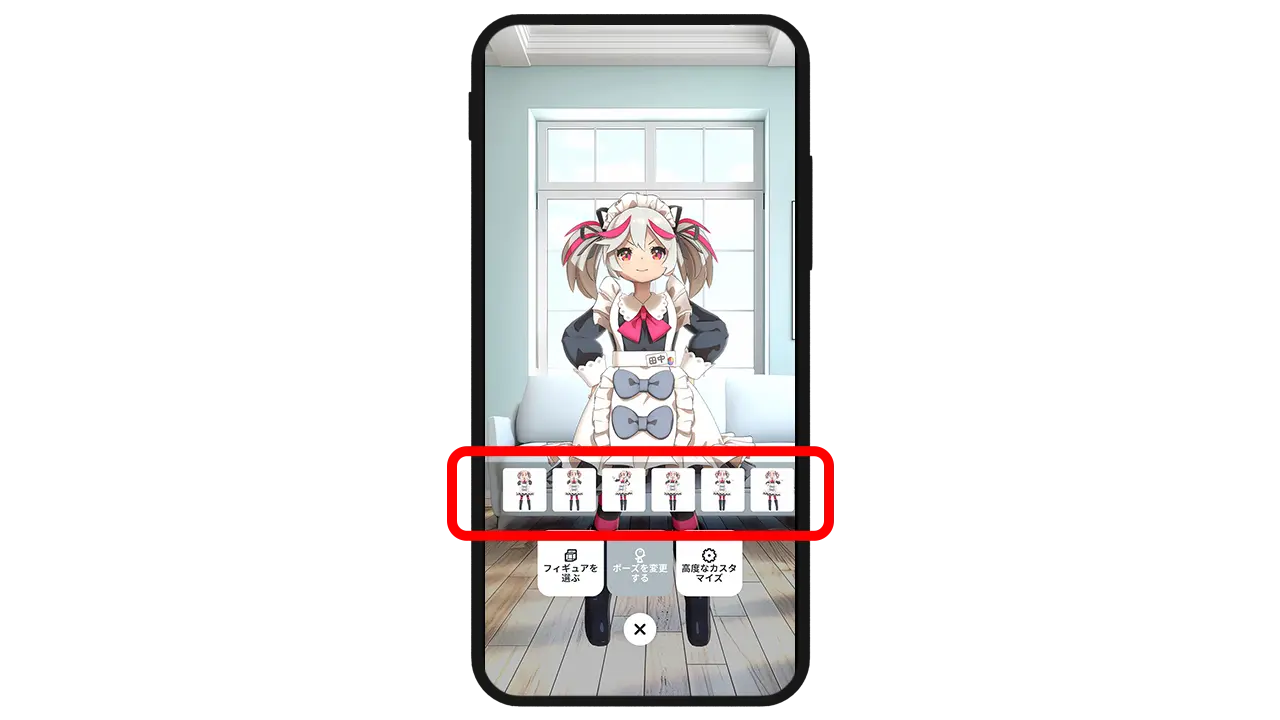
After tapping a figure, you can change its pose from Select Pose Set. There are two ways to set poses: a. 🔰 Easy pose setup with preset poses b. Custom pose setup by manual control Please enjoy each mode according to your location and situation! *Adjustable areas may vary depending on the figure used.
a. 🔰Easy pose setup with preset poses
*Preset poses are poses that are preconfigured in advance.
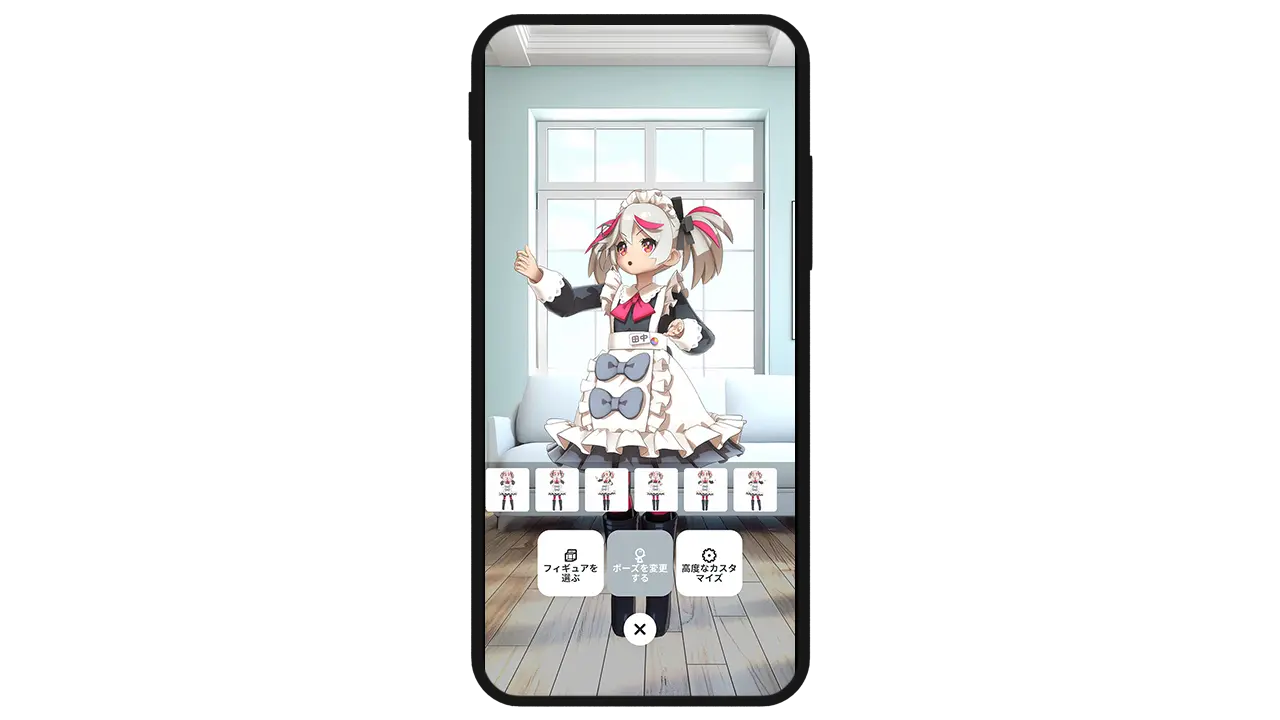
Select your favorite pose from the pose list.
The selected pose has been applied! If you do not wish to create a detailed pose, please proceed to 4) Take Photos or 5) SNS Features.
b. Create detailed poses with manual controls
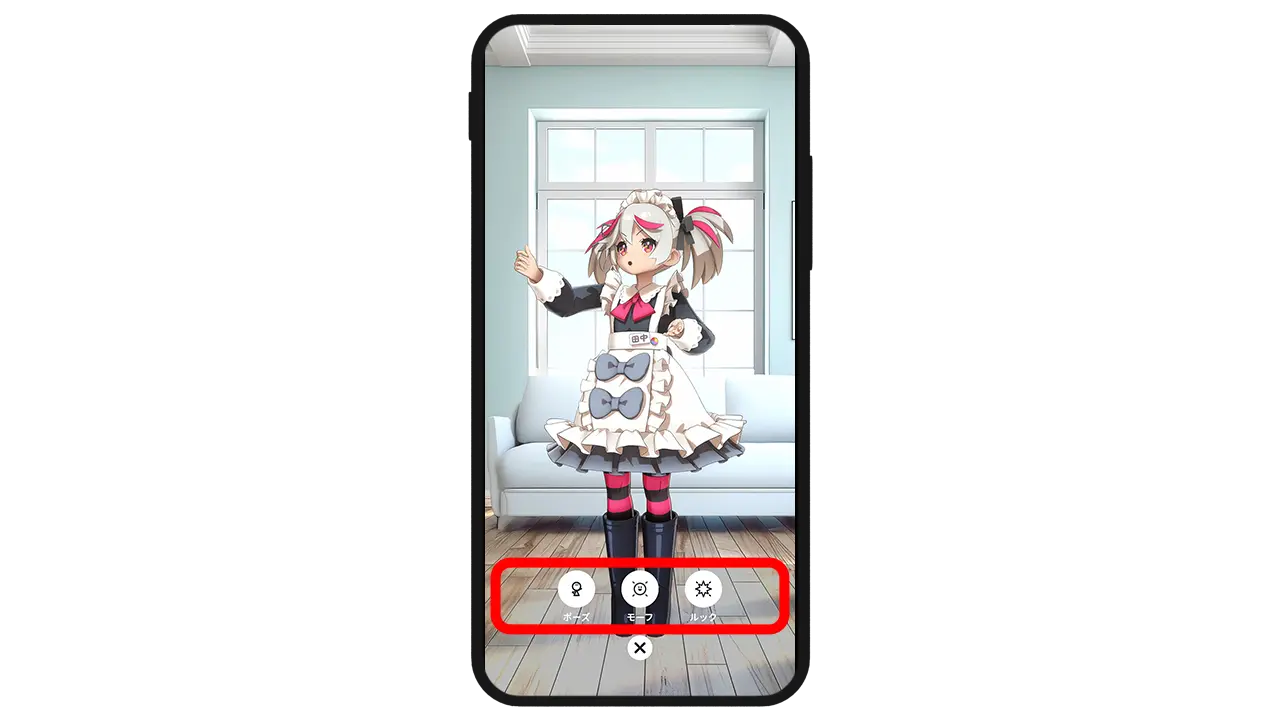
Select + Create New.
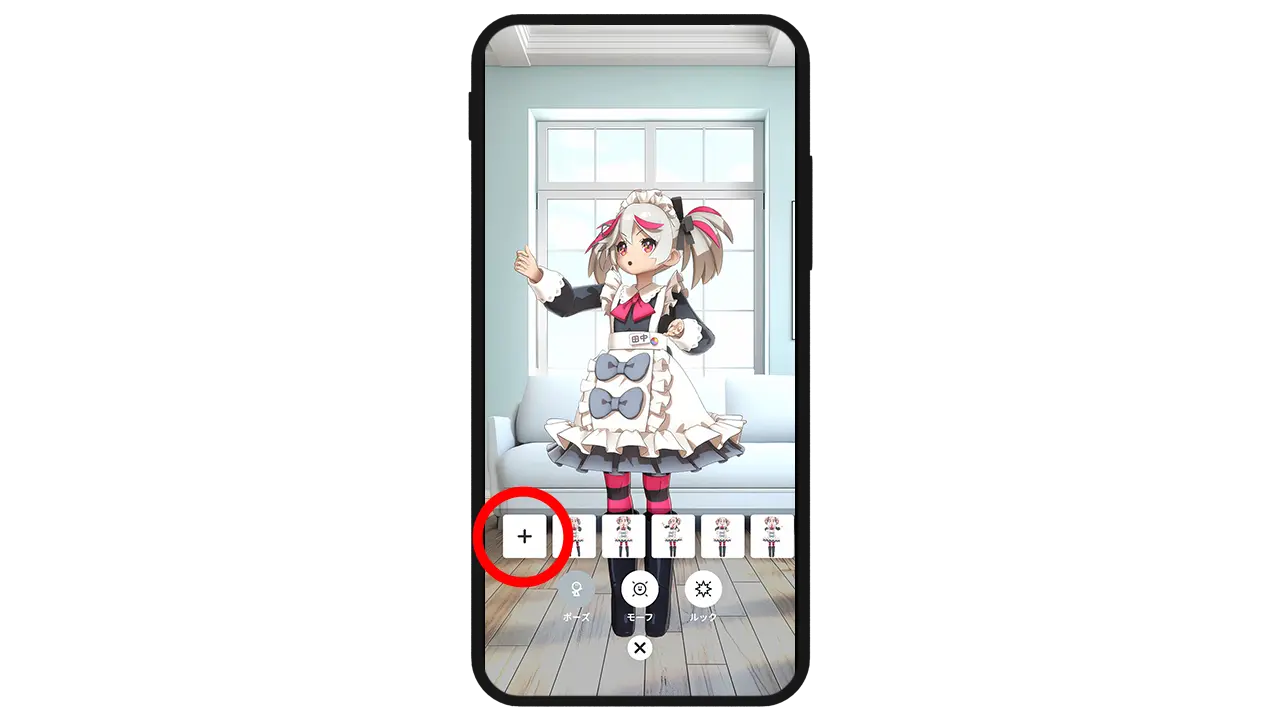
The customization menu will appear on the left. Select the item you wish to change, then select the + Create New button.
① Change Pose
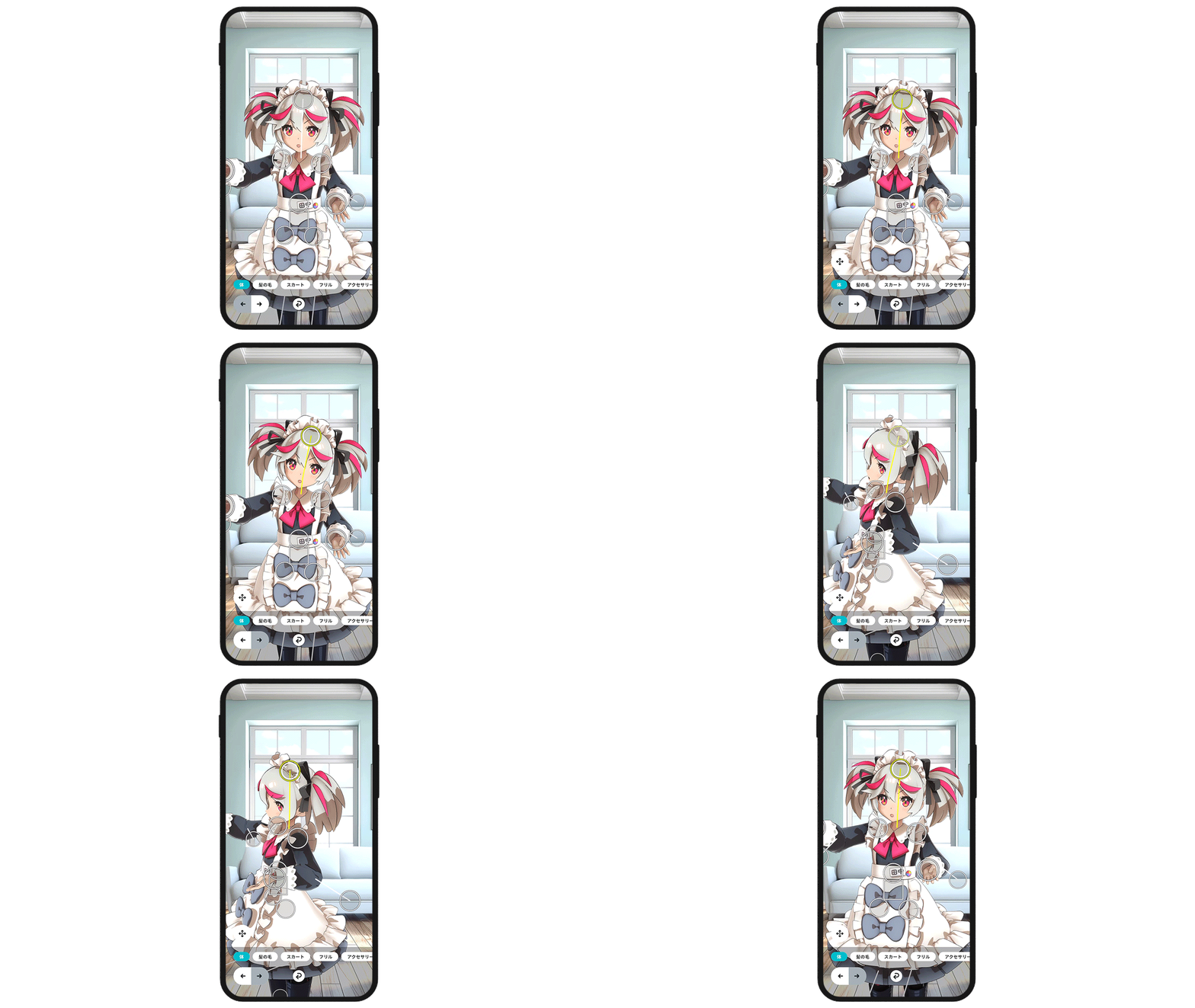
Select the circle indicators on the figure and move them to your desired position.
For parts that can be rotated, you can change their orientation by pressing the Rotate button on the left.
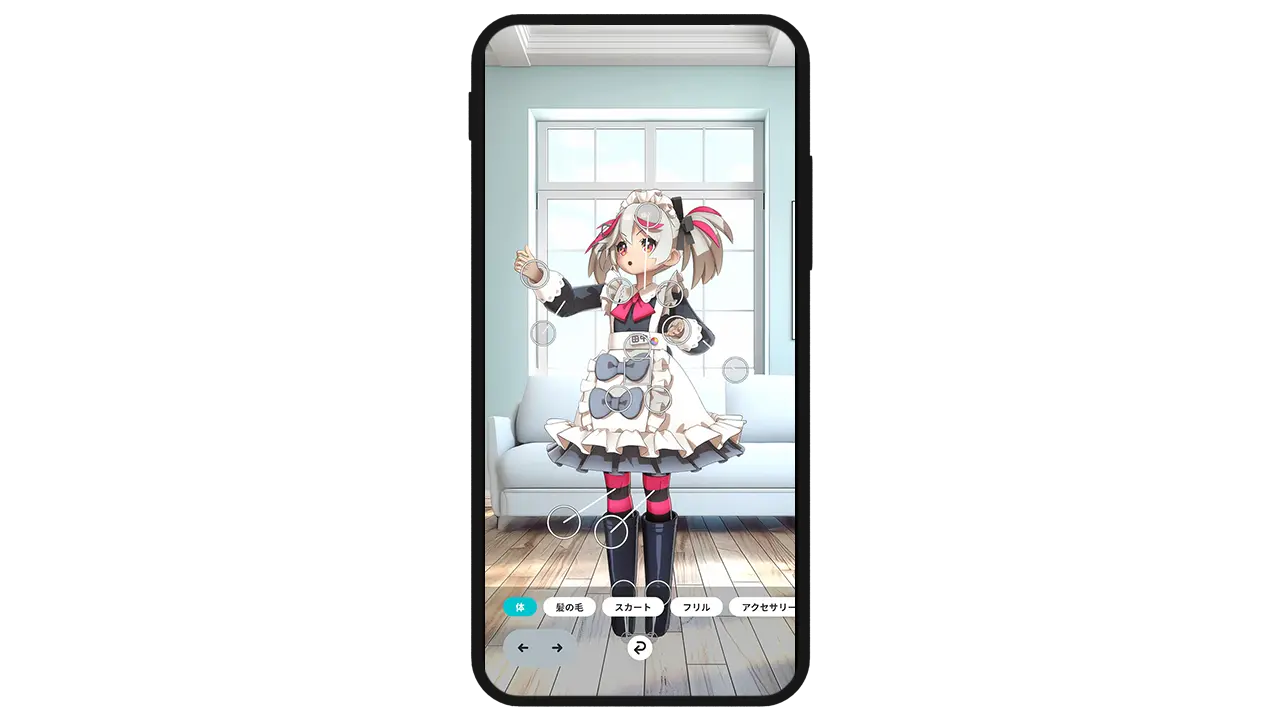
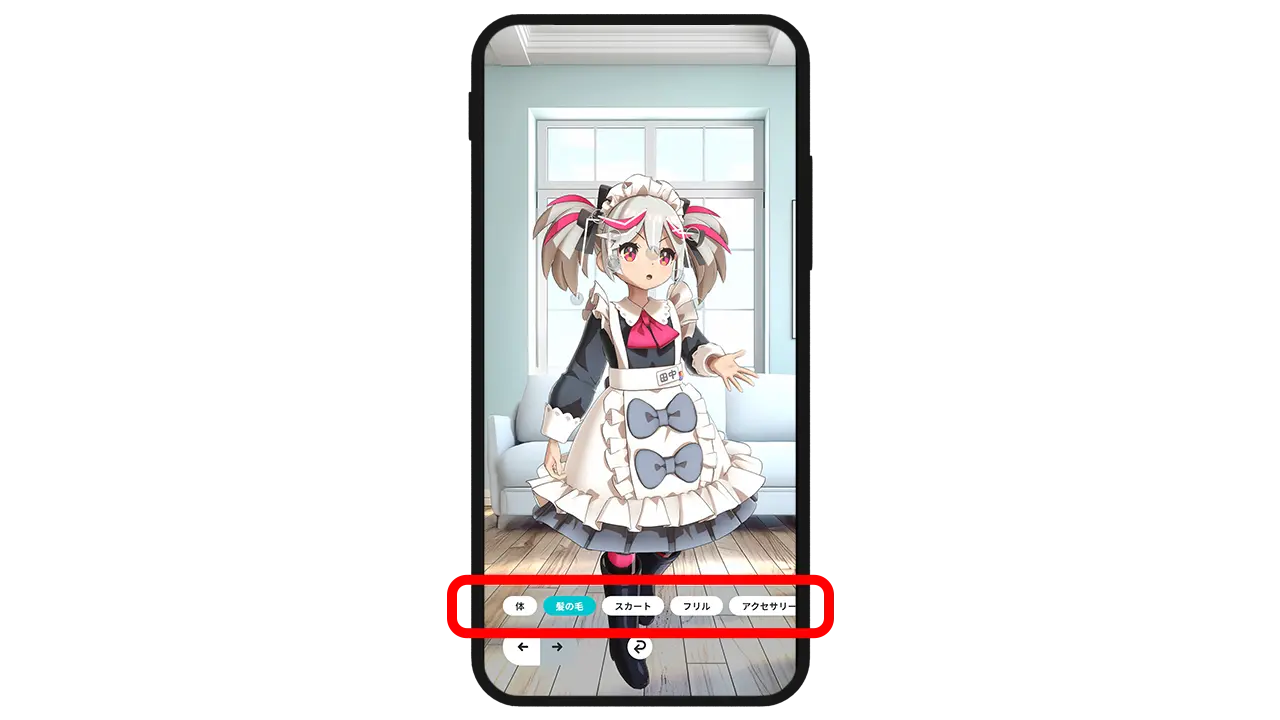
From the menu at the bottom of the screen, you can change which parts are movable. You can finely adjust areas such as the body, hair, skirt, frills, and accessories.
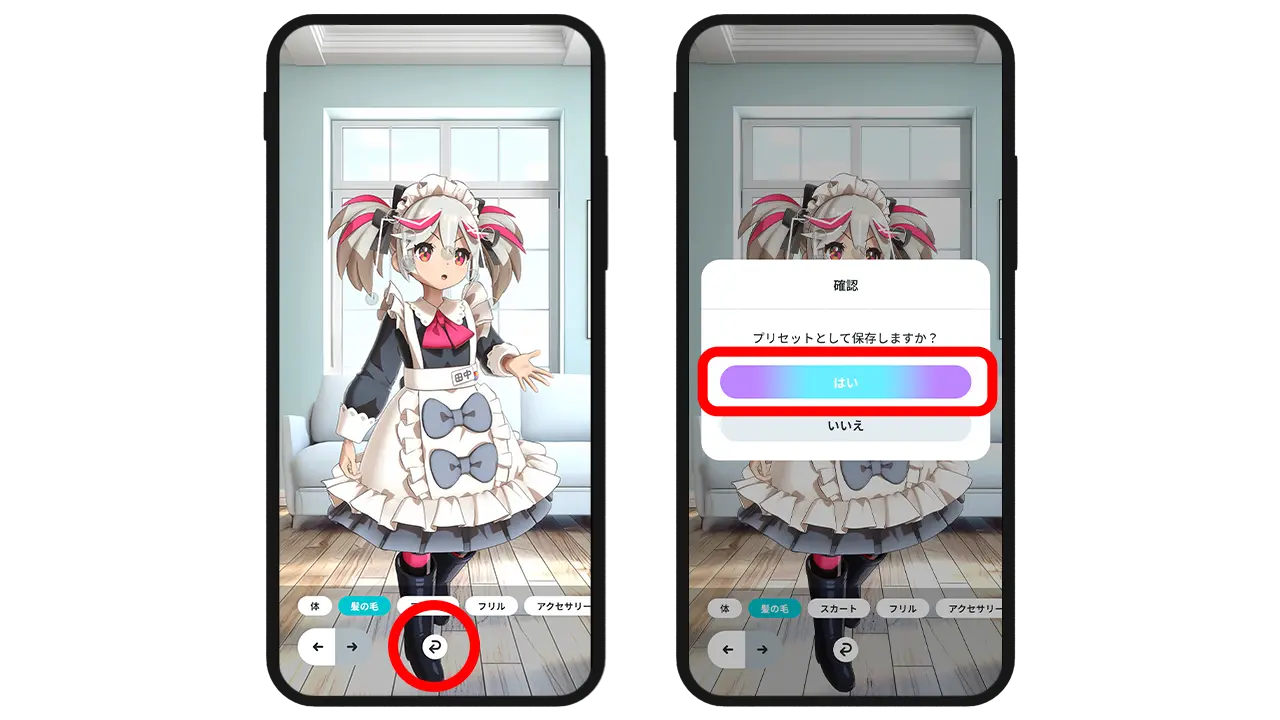
When finished, select the Save button at the bottom right to save it as a preset pose. If you do not want to save it as a preset pose, please select the Back button.
② Facial Expressions
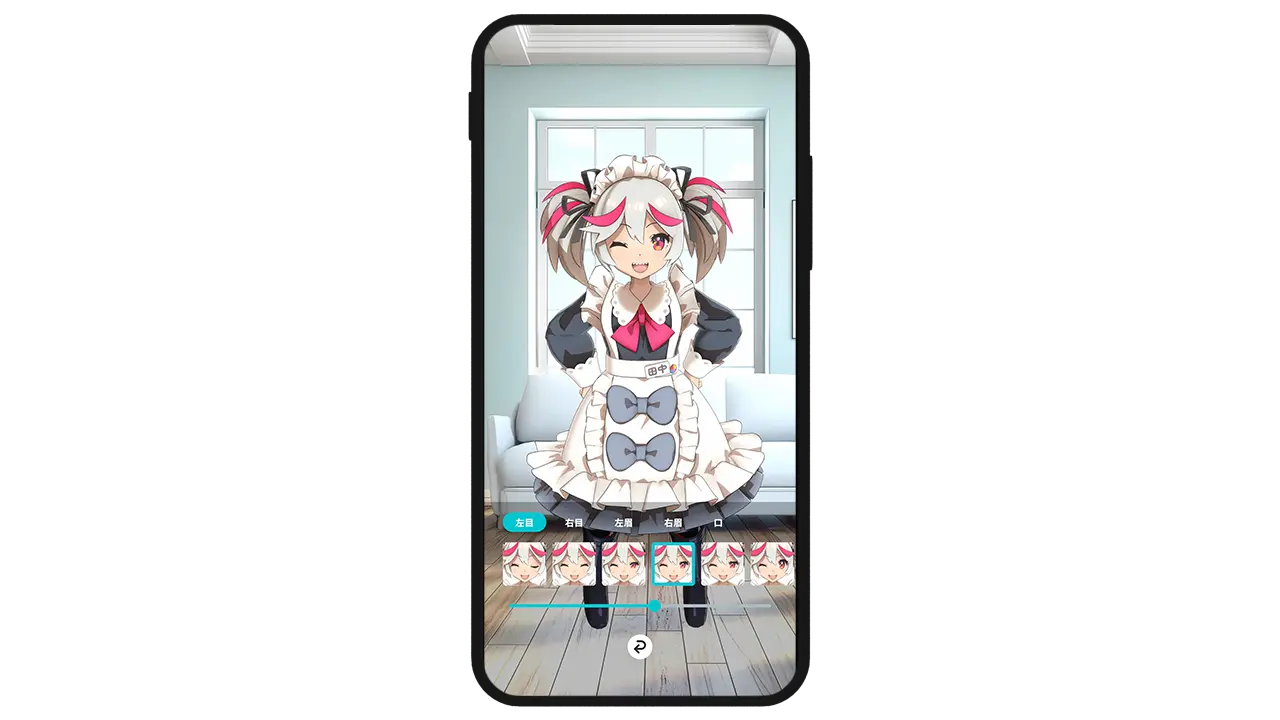
You can change facial expressions. You can also select expressions that are already configured from the list.
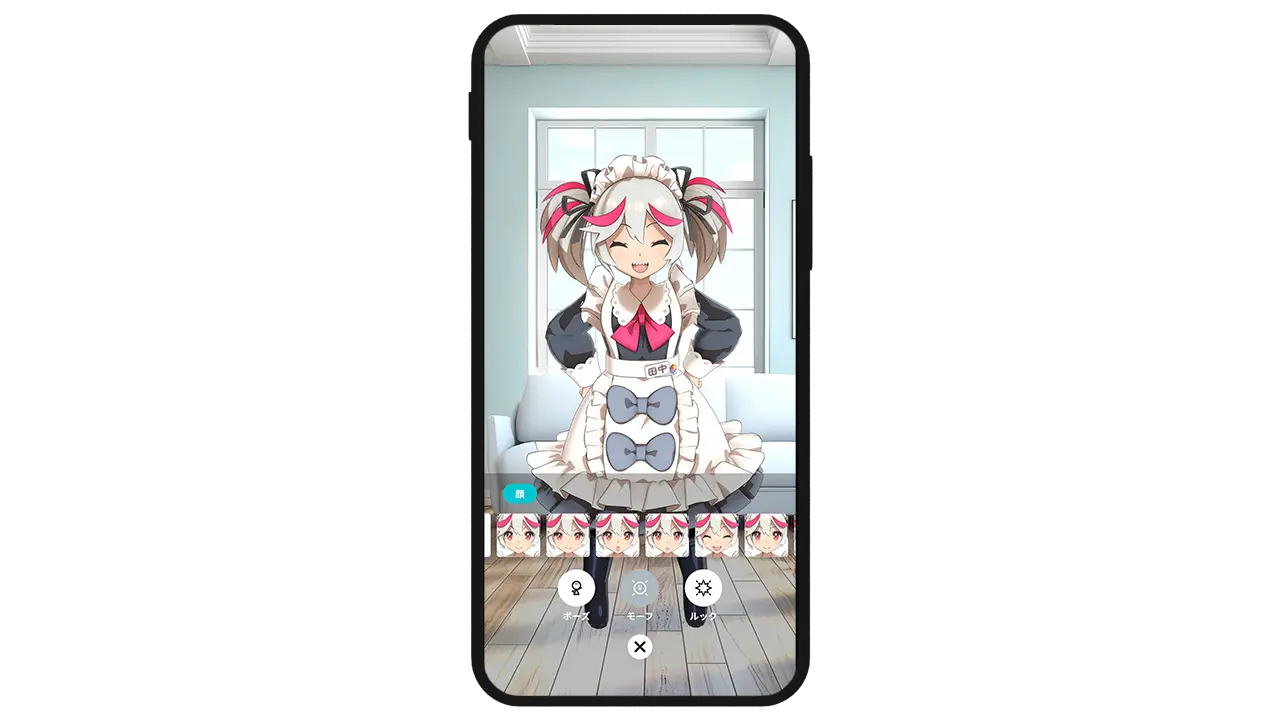
Selecting Create New allows you to adjust individual parts. By selecting the bar at the bottom, you can make fine adjustments such as how wide parts open.
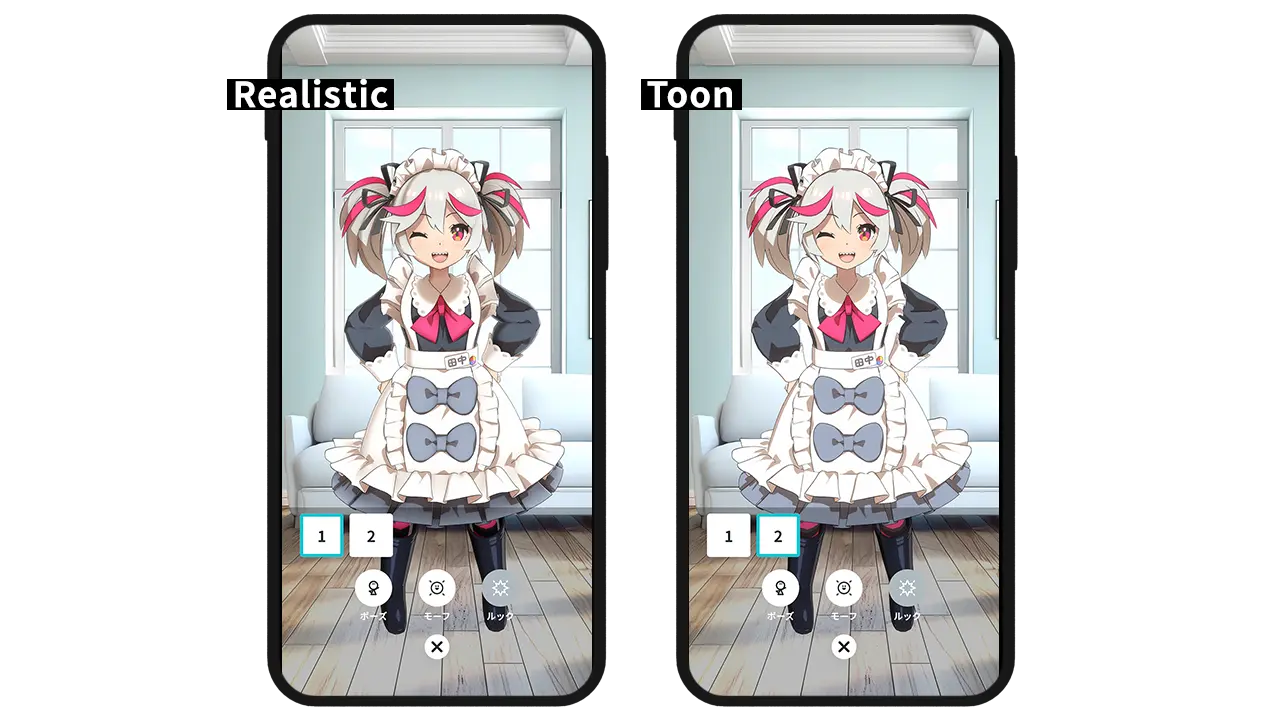
③ Look
You can select the shadow texture. You can choose an anime-style look or more realistic shadows.
4 Take Photos
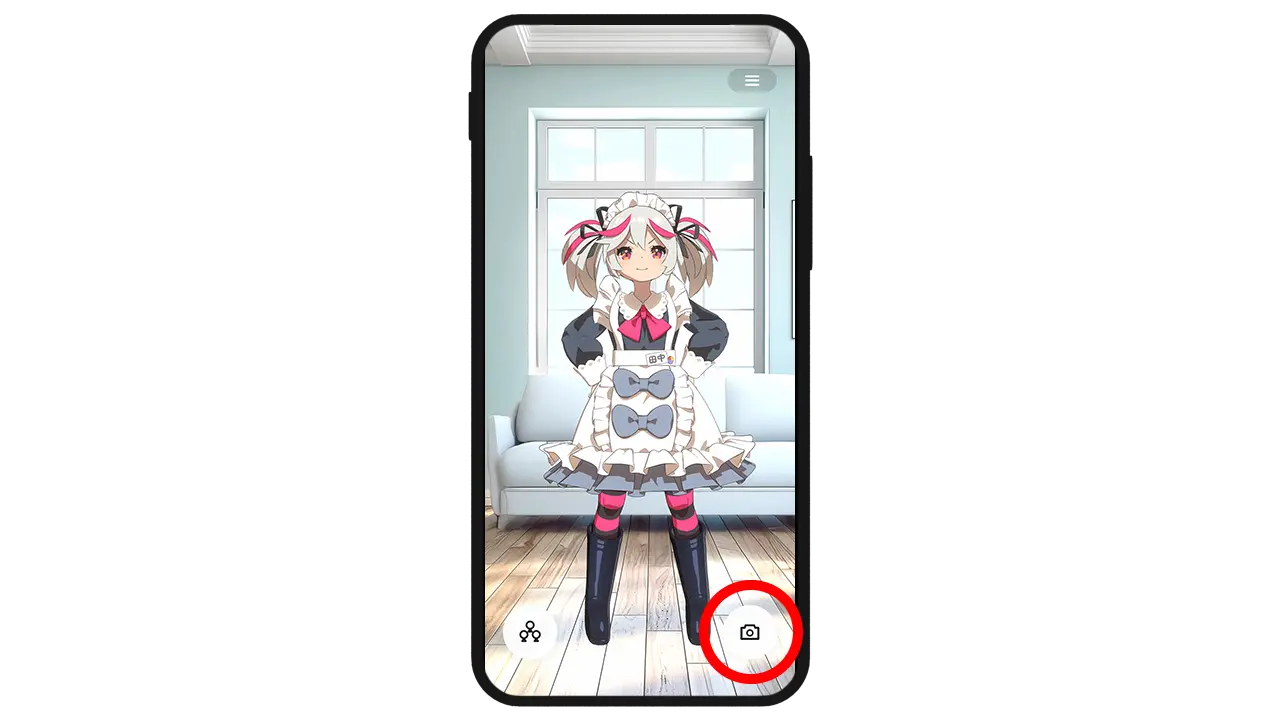
From the home screen, select the camera icon at the bottom right to launch the camera. There are two camera modes: a. 🔰Standard mode b. AR mode Enjoy each mode depending on your location and situation.
a. 🔰Standard mode
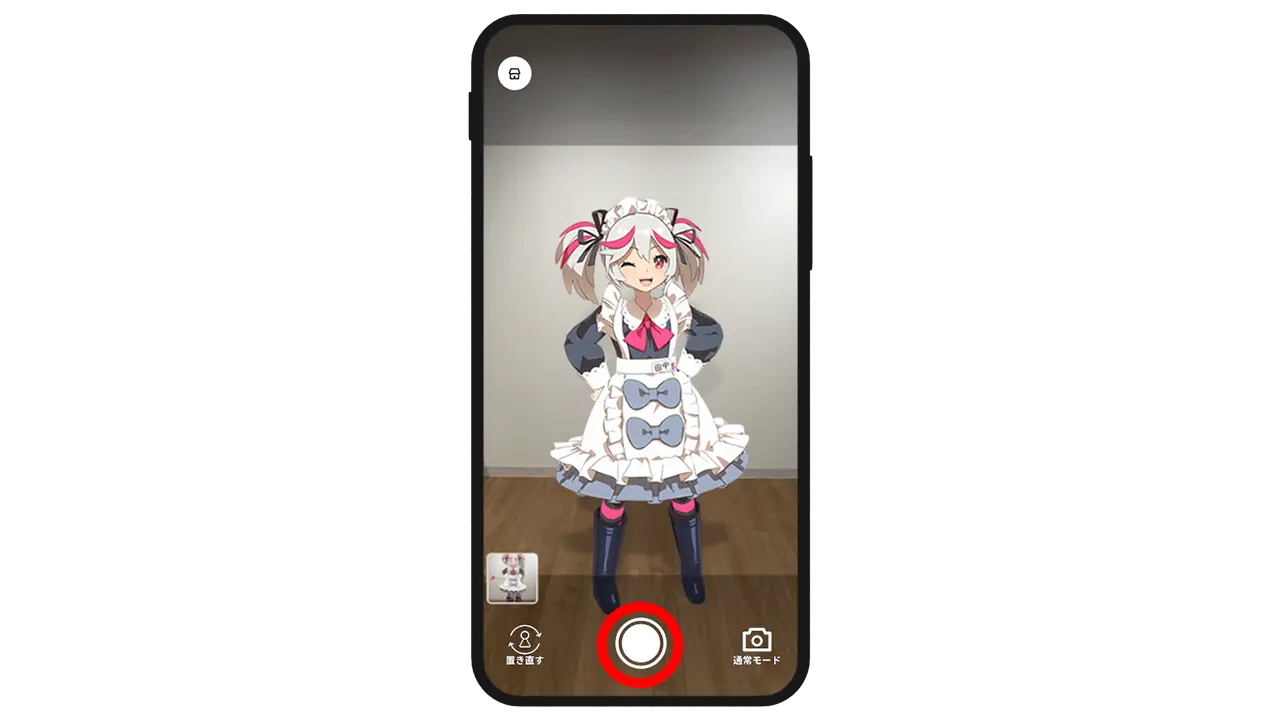
When the camera is launched, the model with the selected pose will be displayed.
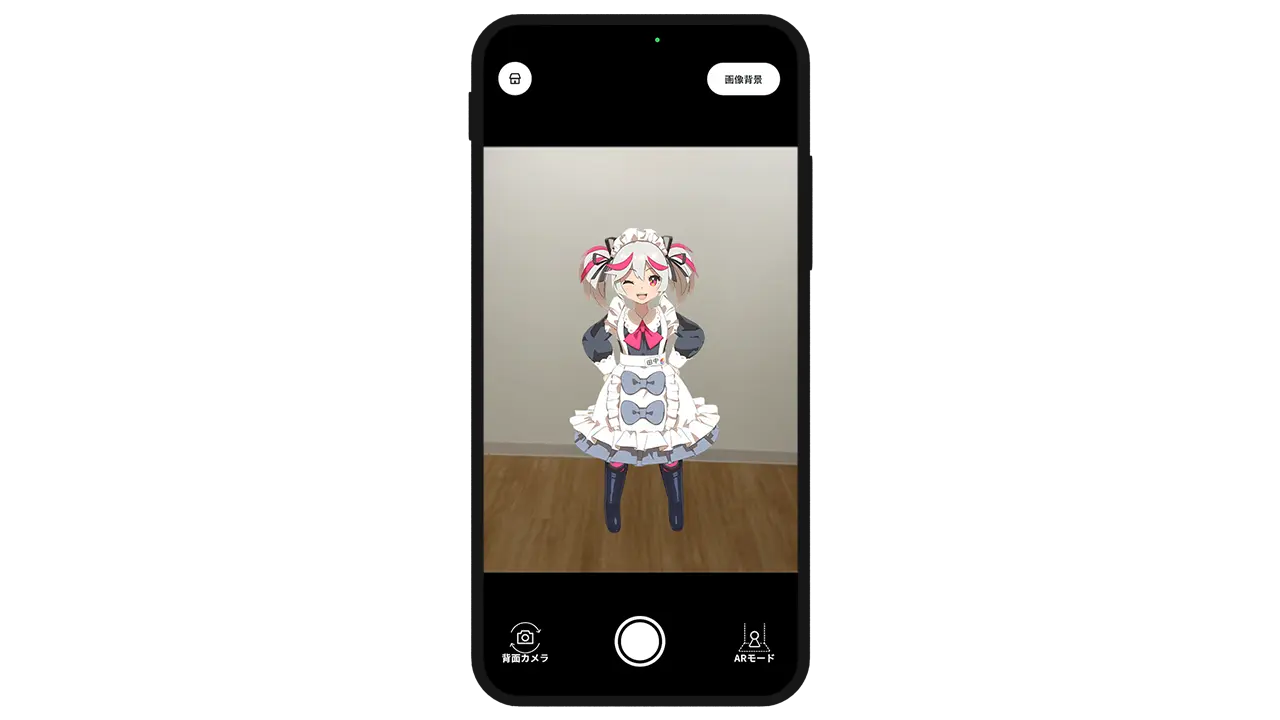
Tap the ◎ button at the bottom to take a photo.
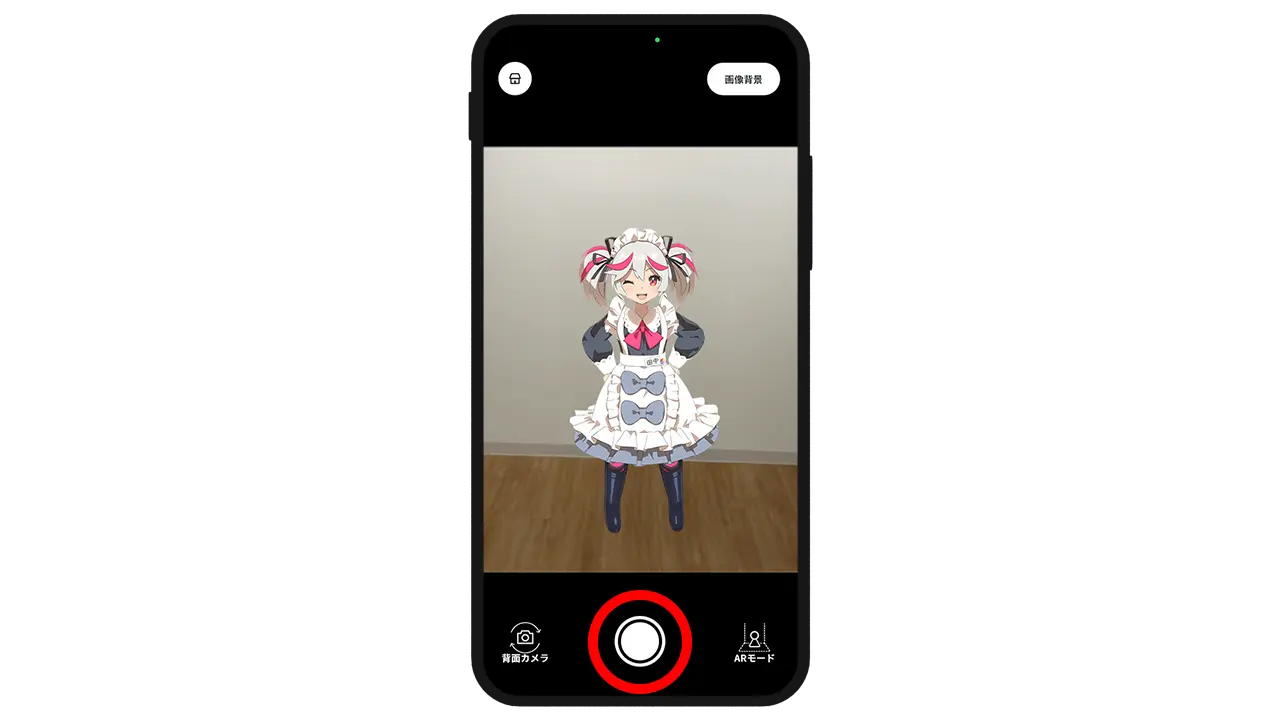
Captured images can be viewed from the gallery at the bottom left. Images saved in the gallery can be downloaded to your device using the download button at the bottom right.
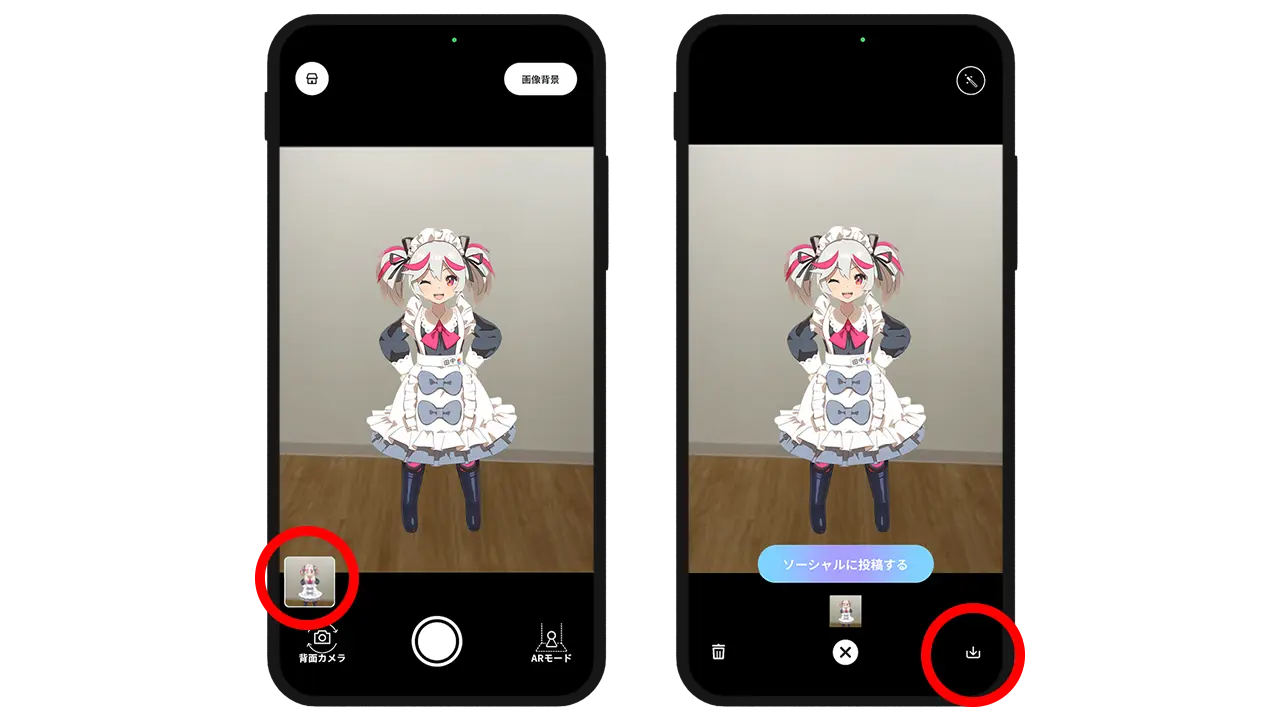
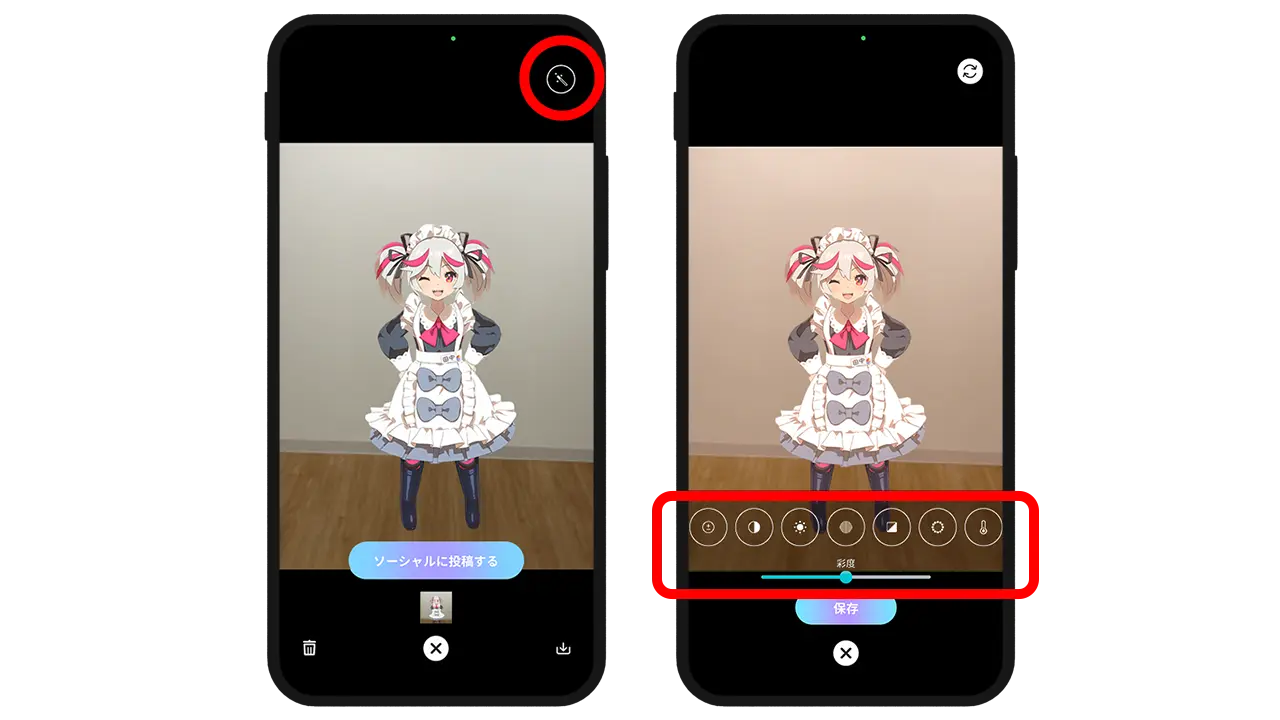
Images in the gallery can also be edited using the touch-up button at the top right. If you are not taking photos in AR mode, please proceed to 5) Social Features!
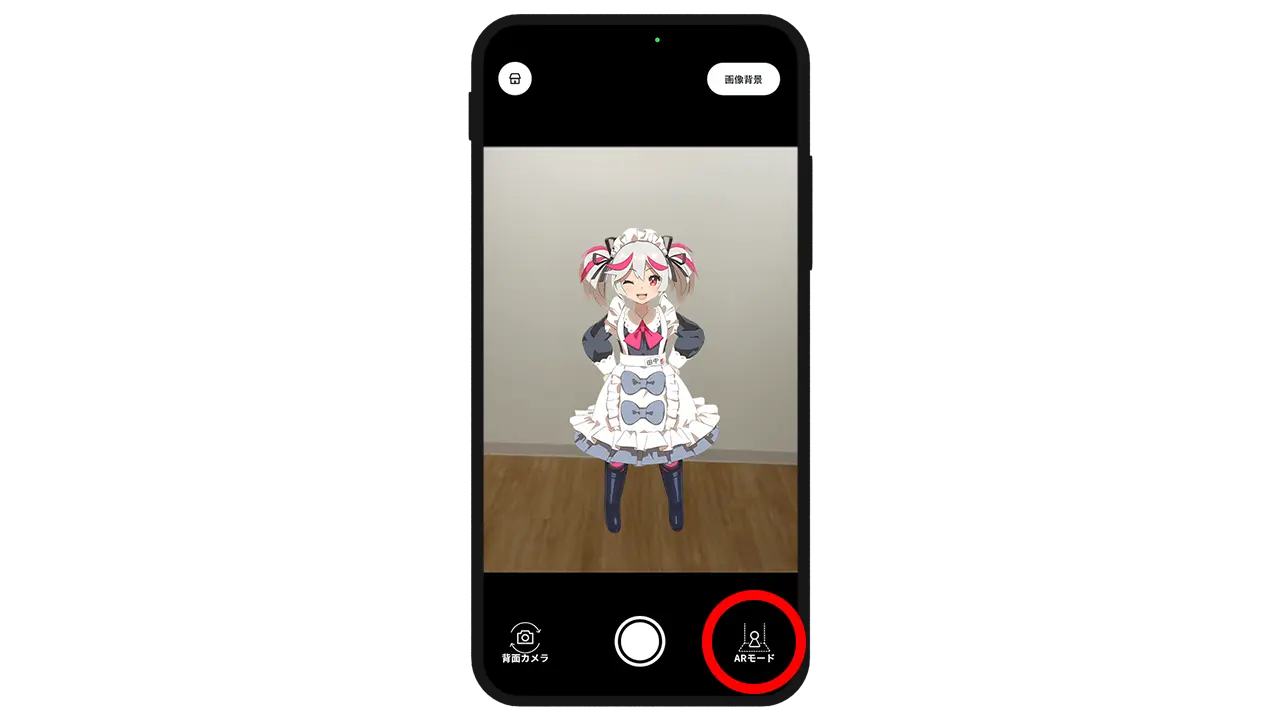
b. AR mode
Launch the camera and select "AR Mode" at the bottom right.
Point the device at the floor where you want to place the figure and move it to allow the surface to be recognized. Once recognized, a yellow outline will appear. (The yellow dots will appear first for detection, followed by the yellow outline.)
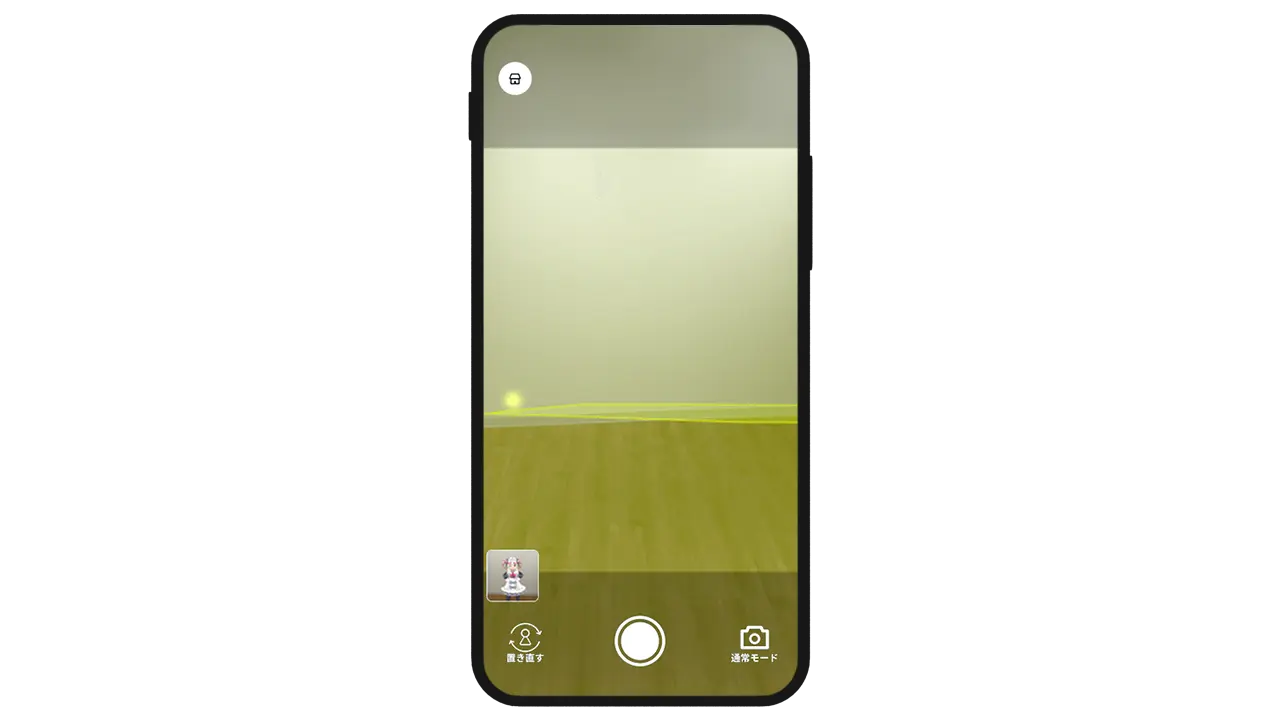
Tap the position inside the yellow outline where you want to place the figure. To adjust the position, select "Reposition" to place it again.
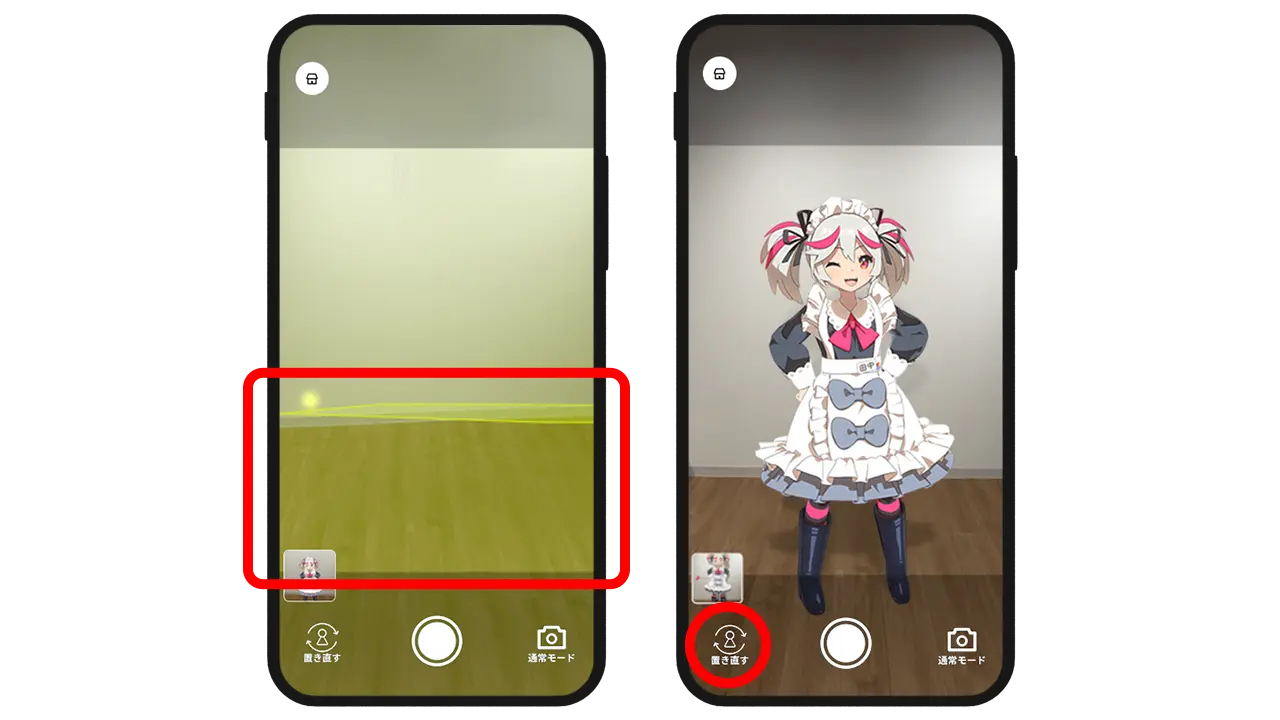
Tap the ◎ button at the bottom to take a photo.
Captured images can be viewed from the gallery at the bottom left. Images saved in the gallery can be downloaded to your device using the download button at the bottom right.
Images in the gallery can also be edited using the touch-up button at the top right.
5 SNS Features
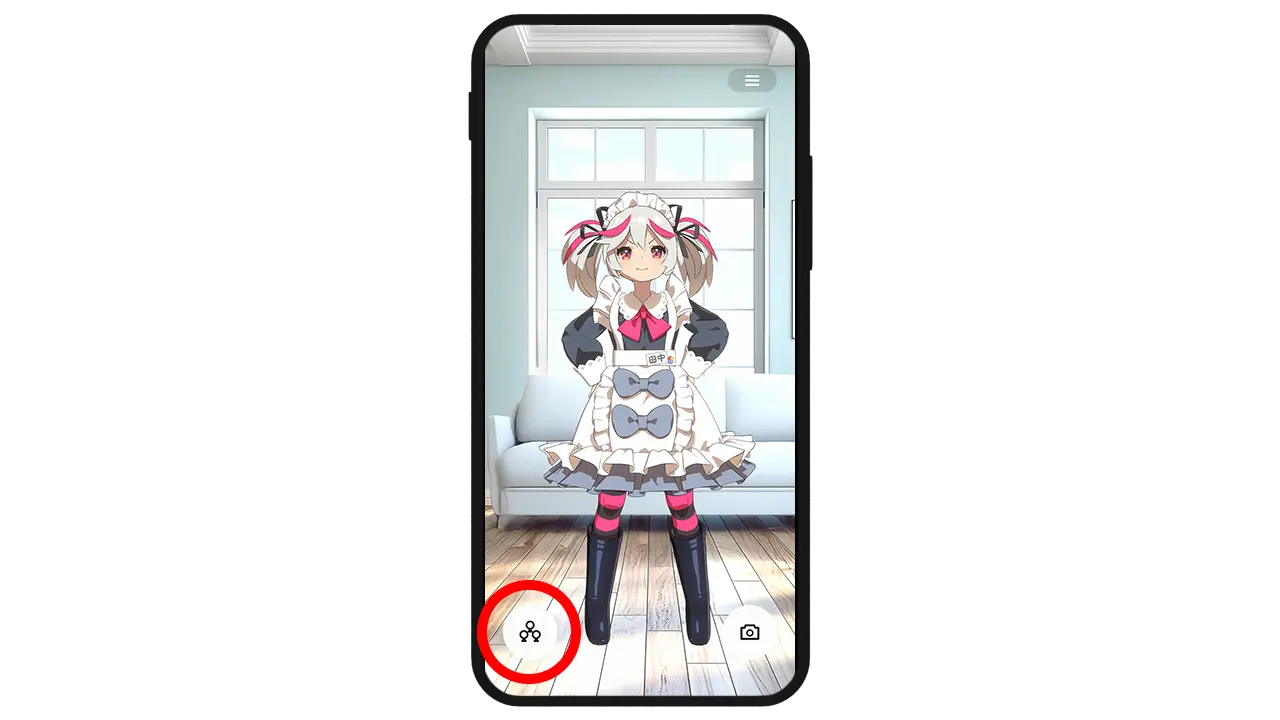
From the home screen, press the SNS feature button at the bottom left to open the SNS screen.
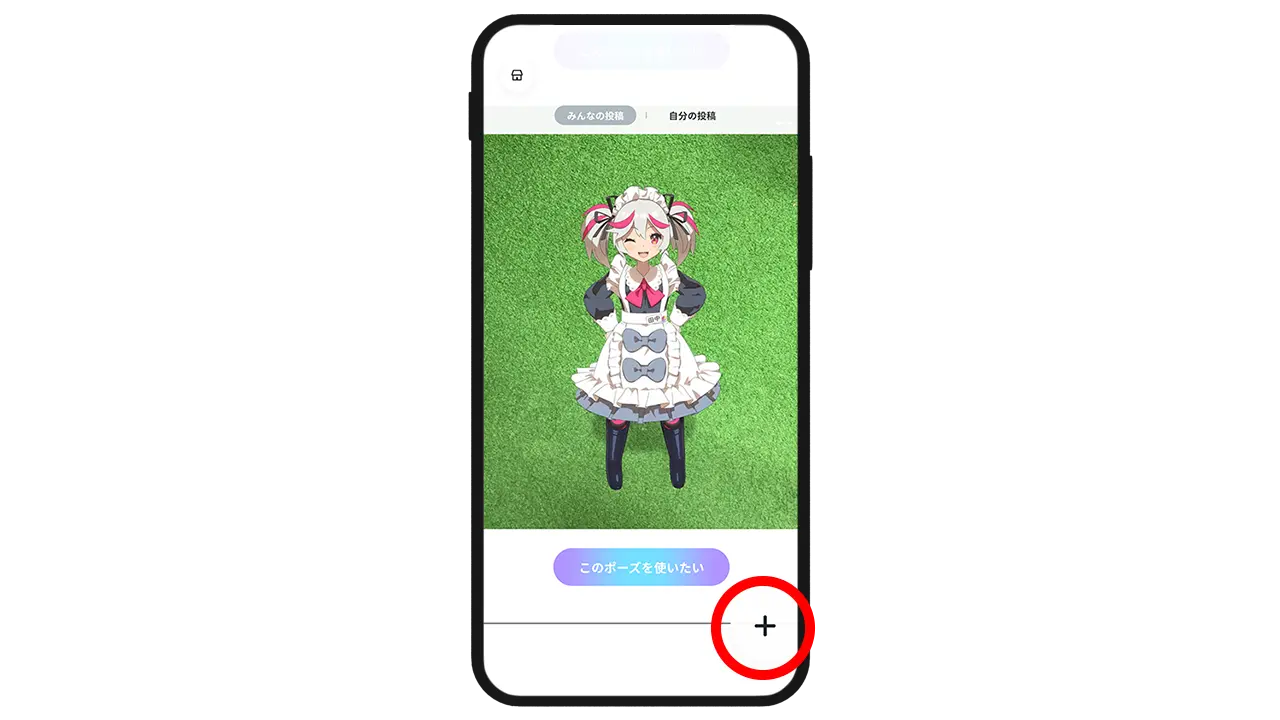
You can share images you created by pressing the "+" button at the bottom right.
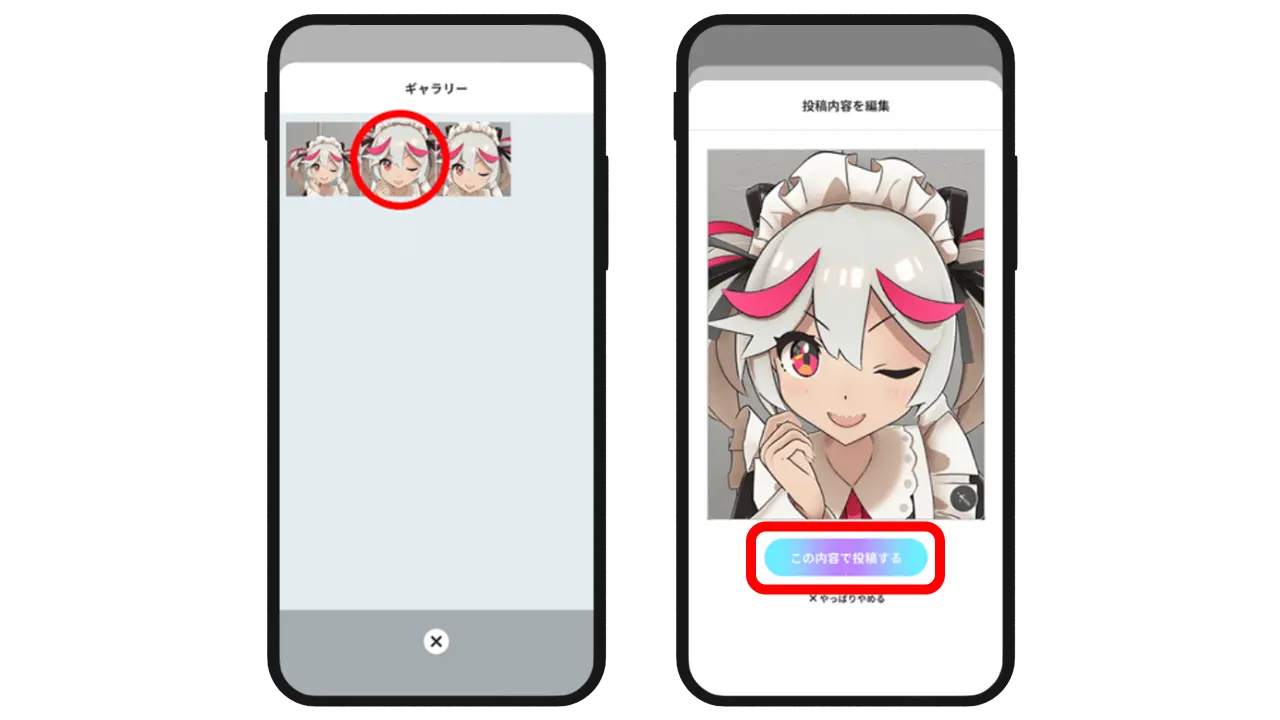
Select the image you want to share from the gallery, then choose "Post with this content".
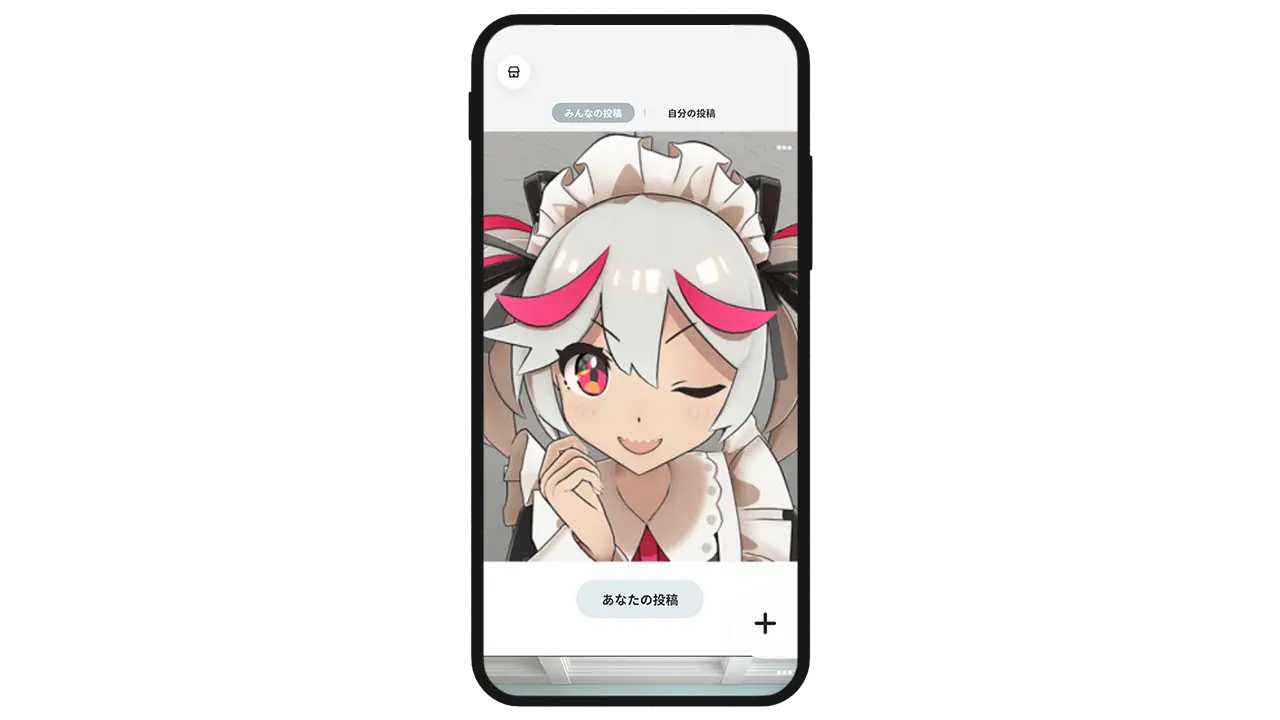
Posting is complete!
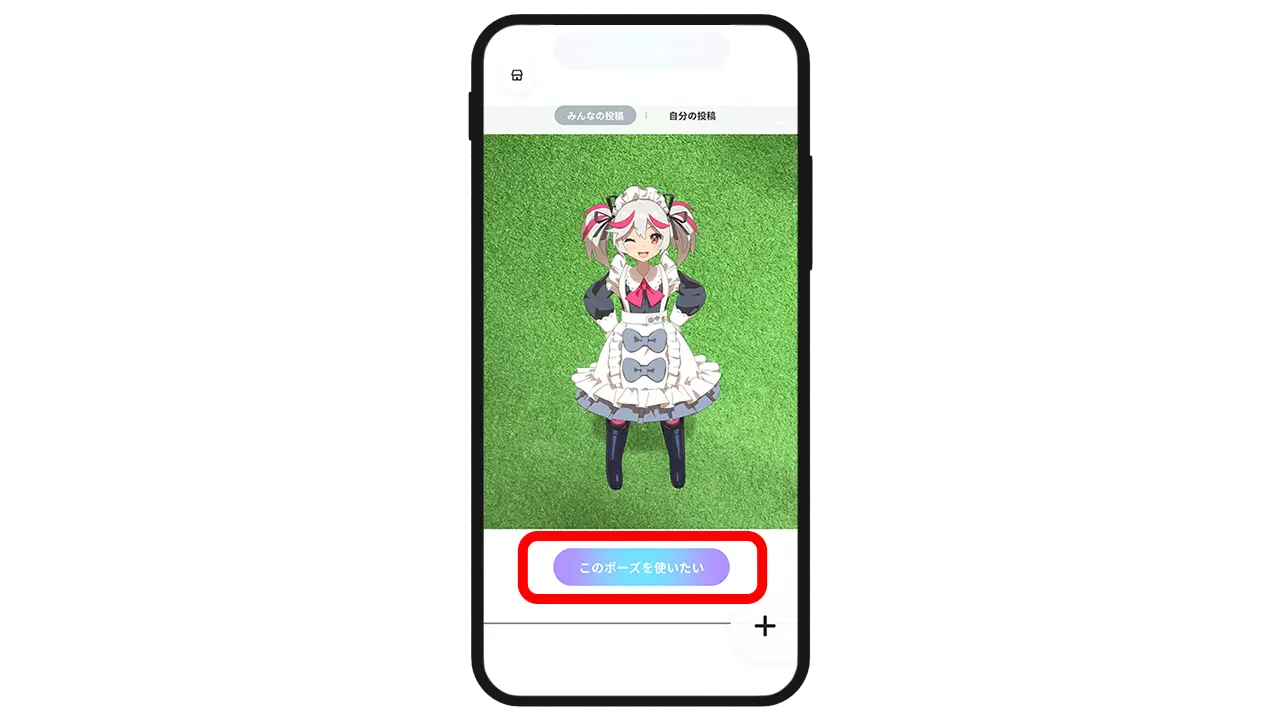
You can use poses created by other users by pressing the "Use this pose" button.
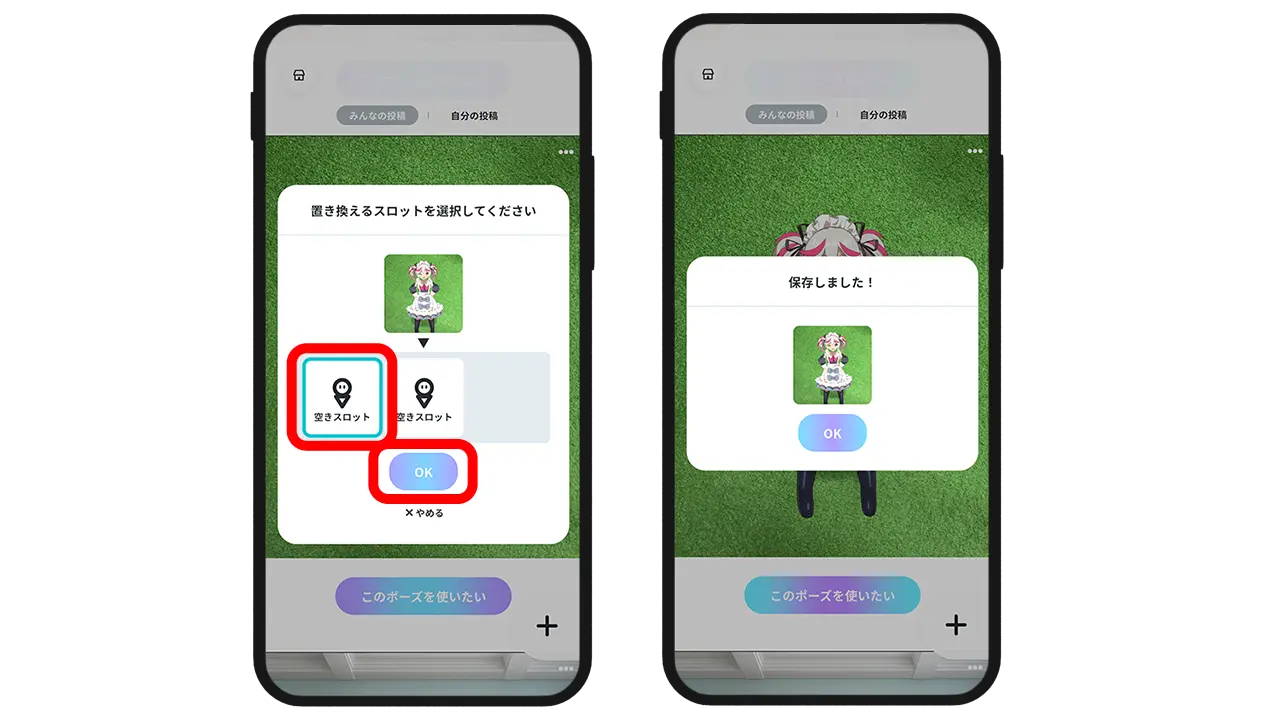
Select the slot to replace and press "OK" to complete saving.
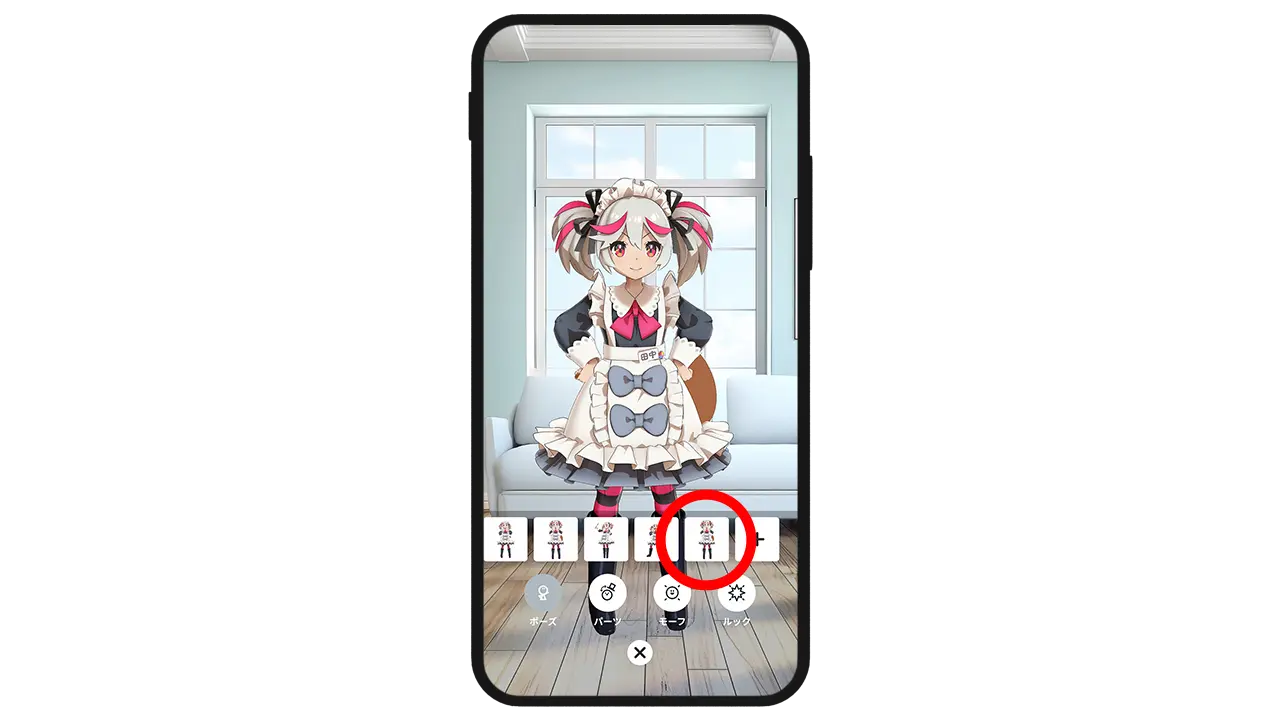
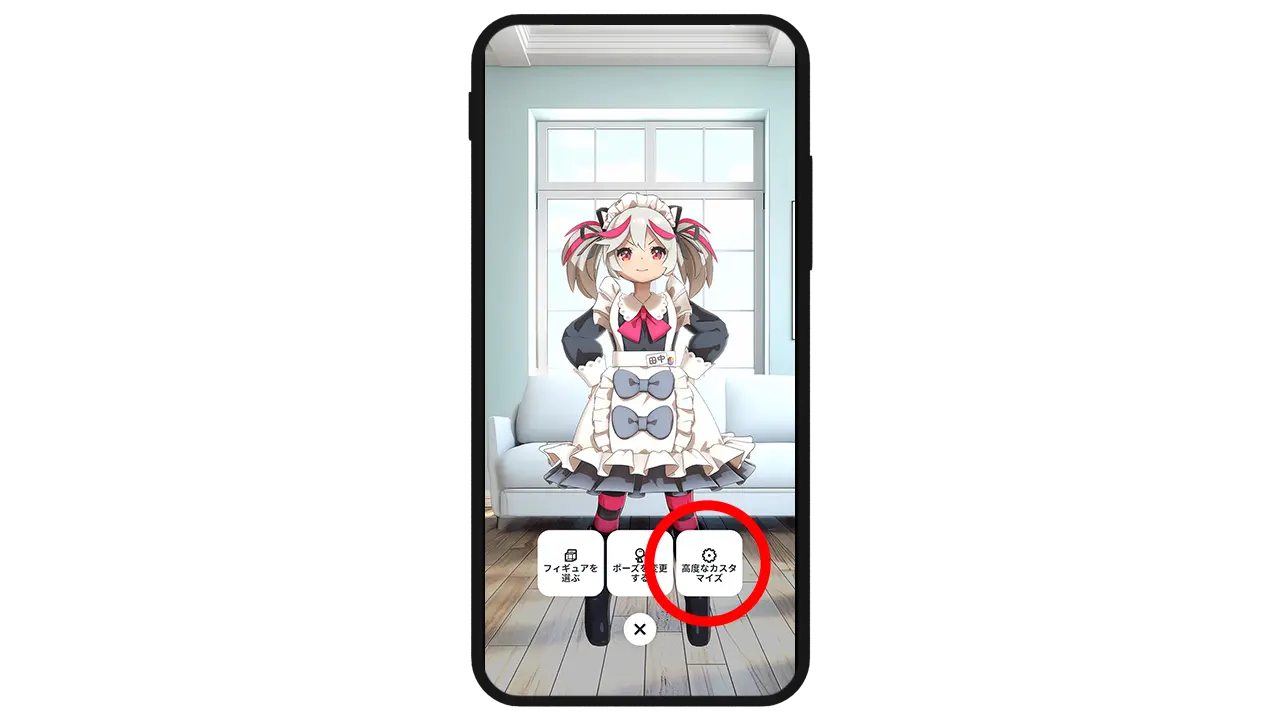
You can use the saved pose from "Advanced Customization".

Smartphone Digital Figure Viewer Enjoyable in XR (AR/VR)
Easy and simple shooting!
[New] HoloModels


Traditional AR pose creation, event features, and more
HoloModels Location